How to Save Restricted Content on Telegram: The Complete 2026 Guide
You found a video, document, or photo on Telegram — but when you try to save it, nothing happens. The download button is greyed out. Forwarding is blocked. You're stuck.
This happens because the channel owner has turned on Telegram's "Restrict Saving Content" feature — and it's more common than ever in 2026. The good news? There are several working methods to save restricted content on Telegram right now, and this guide covers all of them — from the simplest one-tap bot to manual workarounds.
⚠️ Important Disclaimer: Only save content that you have legal access to — content you paid for, content you own, or content the creator has given you permission to save. Do not use these methods to steal or redistribute copyrighted material.
What Is Restricted Content on Telegram?
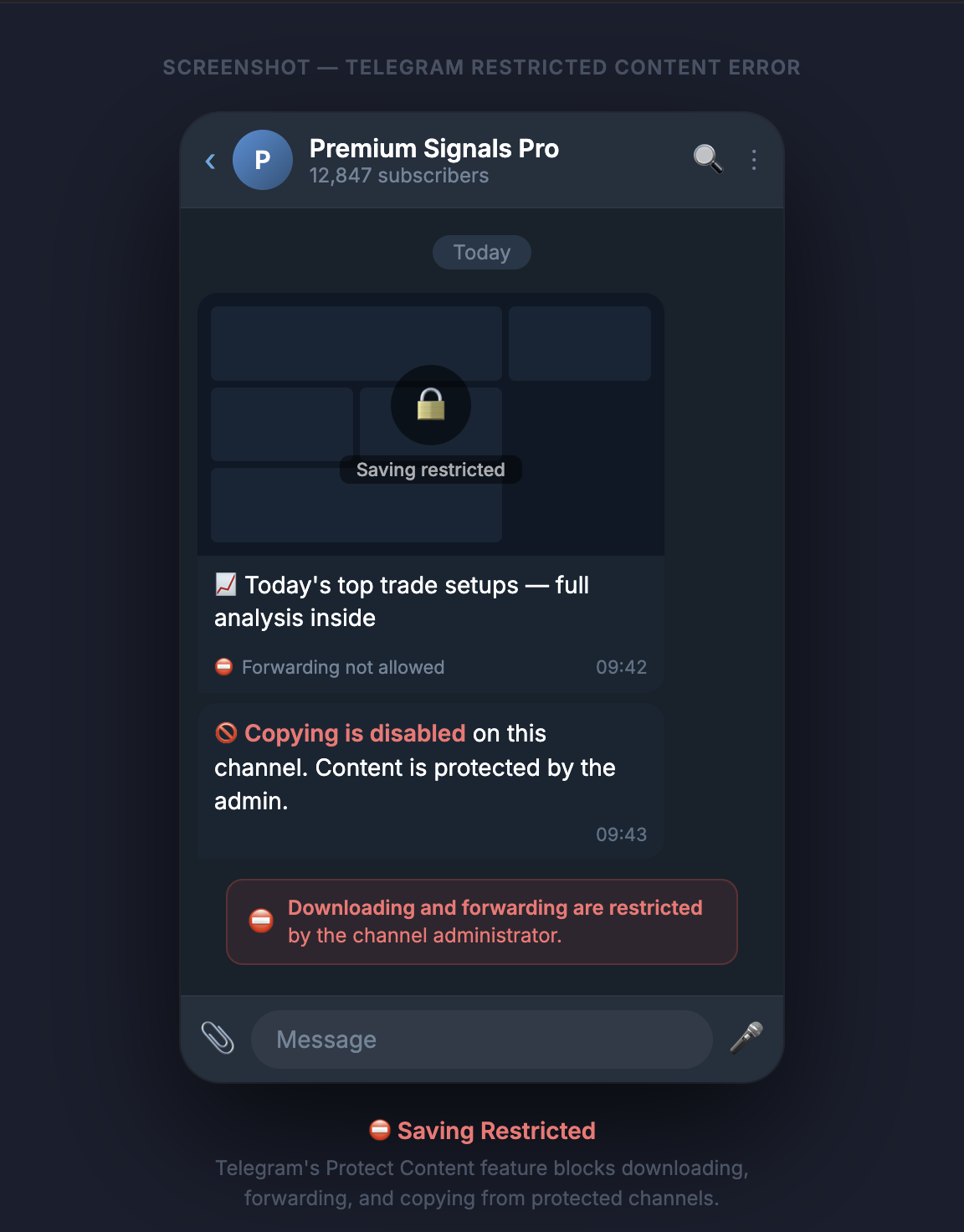
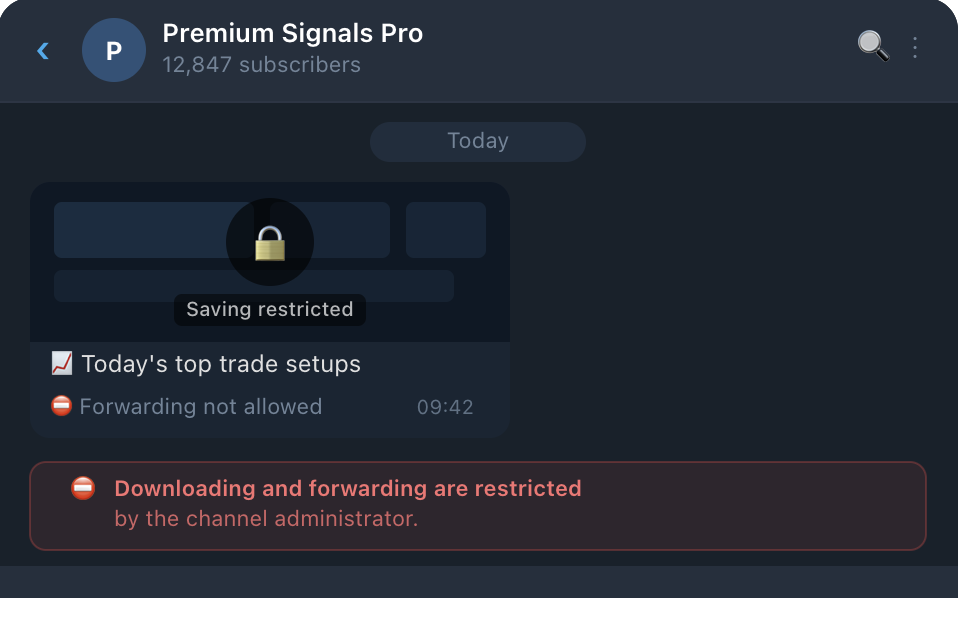
Restricted content is any message, photo, video, file, or sticker in a Telegram channel or group where the admin has disabled forwarding, saving, and screenshotting.
When content protection is turned on, you'll notice:
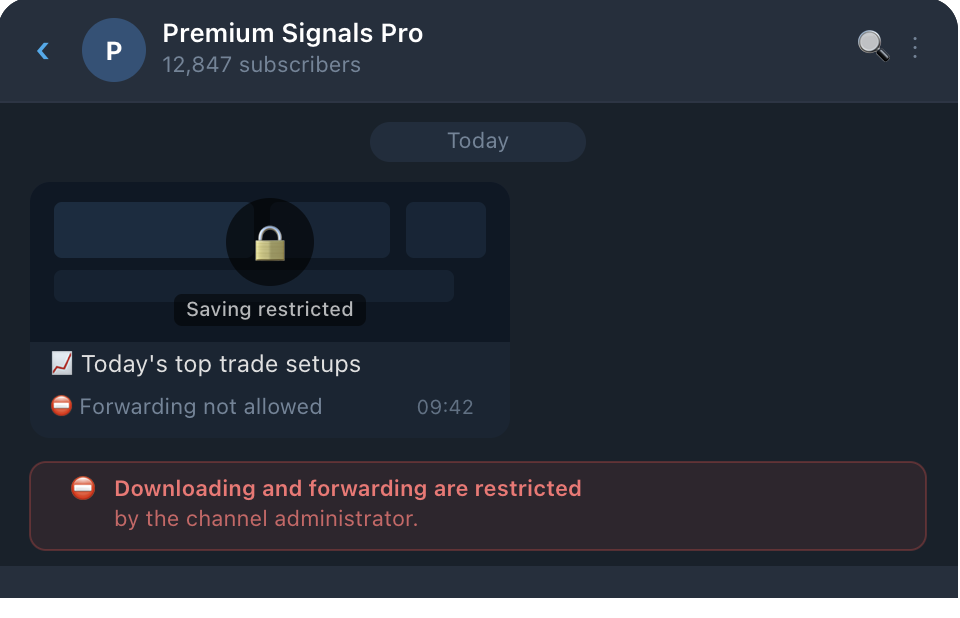
- The download button disappears on photos and videos
- The forward option is greyed out
- You can't copy text from messages
- Screenshots may be blocked on mobile
This feature was introduced by Telegram to help creators and paid channel admins protect their content from being shared without permission. You'll see it most often in paid subscription channels, crypto signal groups, online course channels, and premium content communities.
Why Do Channels Restrict Content?
Channel admins restrict content for a few reasons:
- Paid content protection — If someone is paying ₹499/month for a course, the admin doesn't want free members sharing it outside
- Exclusive signal groups — Crypto and stock signal channels restrict forwarding so only paying members can read the signals
- Copyright protection — Media channels, book summaries, or film content channels restrict downloads to avoid DMCA takedowns
- Preventing leaks — Business communities, beta groups, and invite-only groups restrict content to keep things private
Understanding why the restriction is there helps you decide if saving it is appropriate in your situation.
Is It Legal to Save Restricted Telegram Content?
This is the most important question to answer before you proceed.
Generally, yes — if:
- You paid for the content yourself and want to save it for offline access
- The content is your own and you're saving it from your own channel
- You have explicit permission from the creator
Generally, no — if:
- You're planning to share it publicly or redistribute it
- You're downloading paid content for others who haven't paid
- The content belongs to someone else and you have no permission
Think of it like a Netflix movie. Watching it on your screen is fine. Recording it and uploading it to YouTube is not. The same logic applies here.
5 Ways to Save Restricted Content on Telegram (2026)
Here's a quick overview of all the methods that actually work in 2026, with a comparison table at the end.
Method 1: Use RestrictBuddy Bot (Easiest — Recommended)
This is by far the simplest and fastest method available right now, especially if you're on mobile.
RestrictBuddy is a Telegram bot built by Weego Tech that lets you save restricted photos, videos, documents, and text — directly inside Telegram, with zero technical skills needed.
How to use it:
- Open Telegram and search for @RestrictBuddy or visit weego.tech
- Start the bot by tapping Start
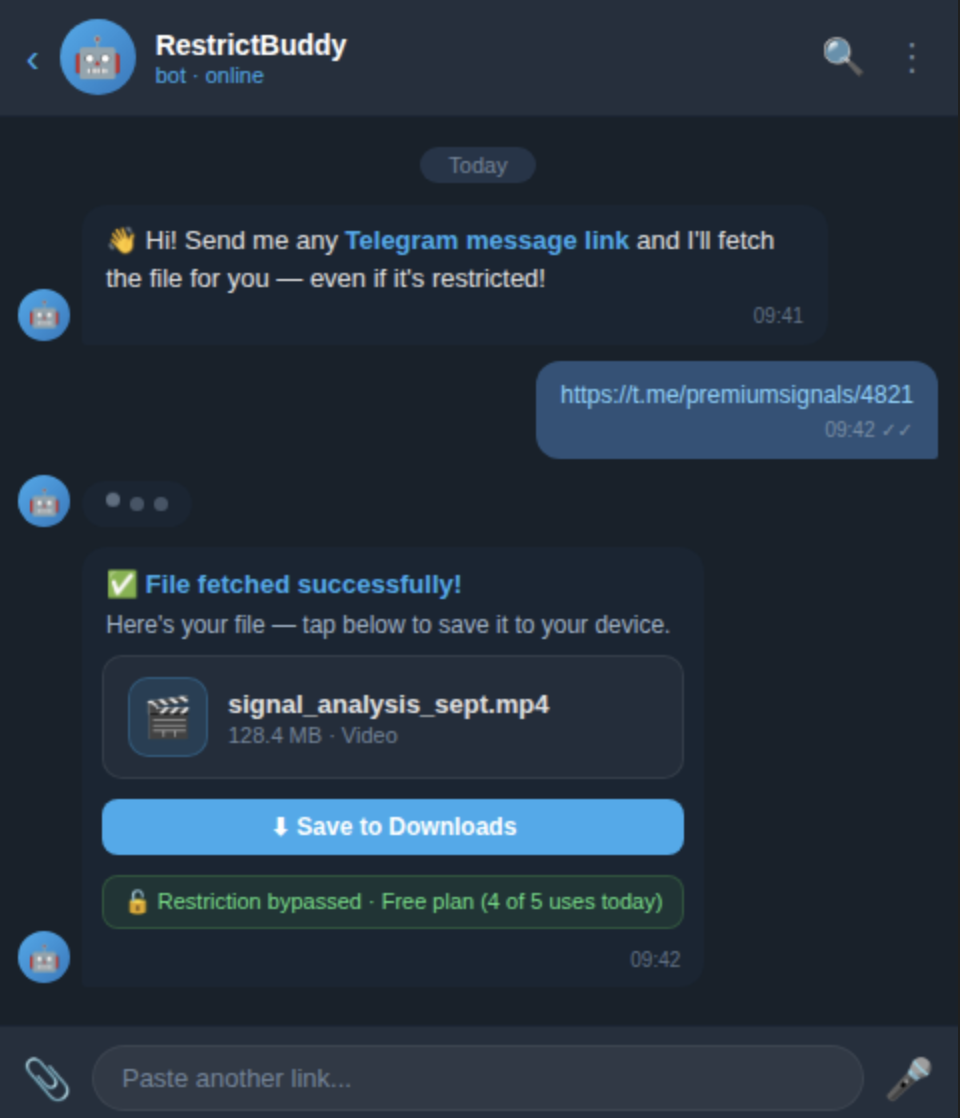
- Go to the restricted channel and copy the message link (hold on the message → Copy Link)
- Paste the link into the RestrictBuddy chat
- The bot sends you back the file instantly — saved to your Telegram Saved Messages
That's it. No apps to install, no technical setup, no PC required.
What makes RestrictBuddy stand out:
- Works on mobile and desktop
- Supports files up to 4 GB (Premium plan) — one of the highest limits of any bot
- Handles photos, videos, documents, audio, and text
- Free tier available — 5 saves per day at no cost
- Unlimited saves on Premium with priority delivery
Method 2: Use Telegram Web on a PC Browser
This method works for some types of restricted content (especially photos and text) on desktop.
- Open web.telegram.org in your browser
- Navigate to the channel with restricted content
- Right-click on a photo → Save Image As
- For videos, right-click → Inspect Element → find the video source URL in the Network tab → open in a new tab → download
Limitation: This works inconsistently. Telegram has been patching this method, and it does not work for videos in many cases anymore in 2026. It also requires a PC.
Method 3: Take a Screenshot or Screen Record
The oldest trick in the book — and it still works for some content.
- Android: Some restricted channels block the screenshot button. If it's not blocked, press Volume Down + Power simultaneously.
- iPhone: Some restrictions prevent screenshots. Try Side Button + Volume Up.
- Screen Recording: Works on both iOS and Android for video content that doesn't have a system-level block.
Limitation: Quality is lower (you're capturing what's on screen, not the original file). Large files and documents can't be captured this way. Telegram Premium channels increasingly block screenshotting at the OS level.
Method 4: Use Telegram Desktop App on Windows/Mac
The Telegram desktop app sometimes allows saving content that the mobile app restricts.
- Open Telegram Desktop on your computer
- Navigate to the restricted channel
- Right-click on a photo or file → Save As
- For videos, right-click → Save to Downloads
Limitation: This does not work on channels with full content protection enabled. Telegram has been closing this gap steadily, and it's becoming less reliable in 2026.
Method 5: Use a Third-Party Downloader Website
Sites like tgsave.com and similar tools let you paste a Telegram link and download the content to your device.
- Go to the third-party site in your browser
- Copy the Telegram content link
- Paste it and click download
Limitation: These are external websites, not Telegram bots. You're sharing the link with a third-party server, which raises privacy concerns. File size limits are usually much lower. They also go offline frequently and are not always maintained.
| Method | Works on Mobile | Works for Videos | File Size Limit | Ease of Use | Reliability (2026) |
|---|---|---|---|---|---|
| ⭐ RestrictBuddy Bot | ✅ Yes | ✅ Yes | Up to 4 GB (Premium) | ⭐⭐⭐⭐⭐ Very Easy | ✅ High |
| Telegram Web | ❌ No | ⚠️ Sometimes | Varies | ⭐⭐ Needs tech skills | ⚠️ Low |
| Screenshot / Screen Record | ✅ Yes | ✅ Yes | Screen capture only | ⭐⭐⭐⭐ Easy | ⚠️ Medium |
| Telegram Desktop App | ❌ PC only | ⚠️ Sometimes | Varies | ⭐⭐⭐ Moderate | ⚠️ Medium |
| Third-Party Website | ✅ Yes | ✅ Yes | 200–500 MB (low) | ⭐⭐⭐ Moderate | ⚠️ Low |
How to Use RestrictBuddy: Full Step-by-Step Walkthrough
Here's a more detailed walkthrough for first-time users:
Step 1 — Find the restricted content
Open the Telegram channel with the content you want to save. Find the photo, video, or document.
Step 2 — Copy the message link
On mobile: hold down on the message → tap Copy Link.
On desktop: right-click the message → Copy Message Link.
The link will look something like: https://t.me/channelname/123
Step 3 — Open RestrictBuddy
Search @RestrictBuddyBot in Telegram and open it. If you're using it for the first time, tap Start.
Step 4 — Paste the link
Simply paste the link you copied and send it as a message to the bot.
Step 5 — Receive your file
Within a few seconds, RestrictBuddy sends the file back to you. Tap Download to save it to your device.
For the free plan, you can do this 5 times per day. If you need unlimited saves — for example if you're downloading course material or backing up a full channel — upgrade to RestrictBuddy Premium for unlimited access and priority speed.
Frequently Asked Questions
Will the channel admin know I saved their content?
No. Telegram does not notify channel admins when someone saves or downloads their content using any of these methods.
Does RestrictBuddy work for all types of files?
It works for photos, videos, documents, audio files, voice messages, and text. It does not work for live streams.
What is the file size limit?
The free plan supports standard-sized files. The Premium plan supports files up to 4 GB, which is one of the highest limits available from any Telegram bot.
Is RestrictBuddy safe to use?
Yes. It's a legitimate Telegram bot built by Weego Tech. You're interacting entirely within Telegram — no external website, no login, no personal data required.
Does this work for private groups too?
RestrictBuddy works for any content you have access to — public channels, private channels you're a member of, and groups.
What if the bot doesn't respond?
Try again after a few seconds. If you're on the free plan and have hit your daily limit, you'll need to wait until the next day or upgrade to Premium.
Final Thoughts
Saving restricted content on Telegram doesn't have to be complicated. While there are several methods out there, most of them are inconsistent, require a PC, or break every time Telegram updates.
RestrictBuddy is the simplest and most reliable option in 2026 — it works on mobile, handles files up to 4 GB, and requires zero technical knowledge. The free plan covers casual users, and Premium is worth it if you regularly save content from restricted channels.
Try RestrictBuddy now at weego.tech — it takes less than 30 seconds to set up.