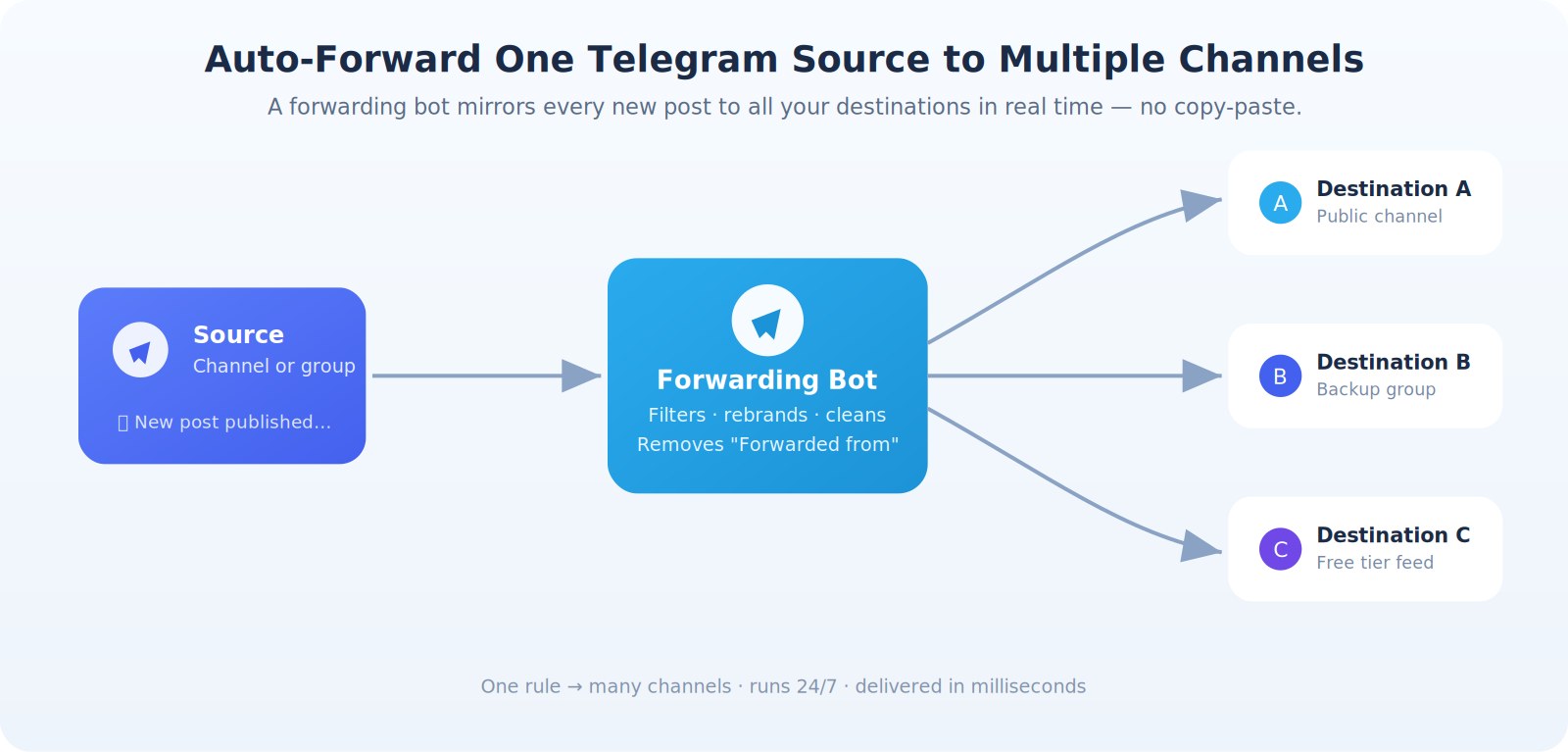
Copy-pasting the same post into five channels every day gets old fast — and it's easy to miss one. The good news: you can auto-forward Telegram messages to multiple channels automatically, so every new post in your source lands in all your destinations in seconds, with no manual work. This guide covers the native Telegram method, why it falls short, and how to set up a proper forwarding bot in a few minutes — including how to strip the “Forwarded from” tag, filter what gets sent, and do it all for free.
Can you auto-forward Telegram messages to multiple channels?
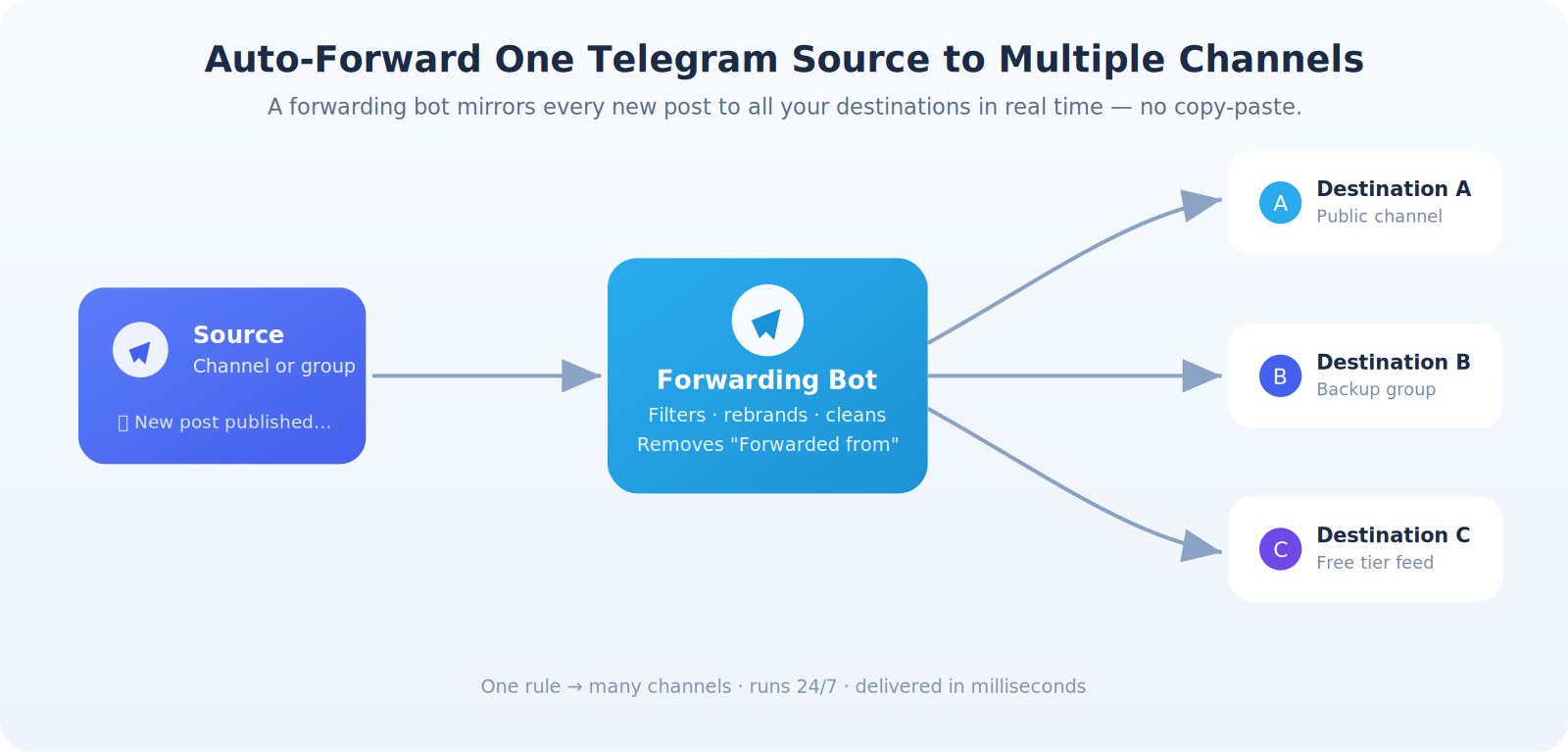
Yes. Telegram has no built-in “auto-forward” setting, but a forwarding bot solves it completely. You connect a source (a channel or group) and one or more destinations, and the bot mirrors every new post the moment it’s published — 24/7, in real time.
The native Forward button only handles one message at a time and one chat per action. For anything recurring — a news feed, a signals channel, a backup — you need automation. That’s what a forwarding bot is built for.
Why isn’t Telegram’s native “Forward” enough?
Telegram’s built-in forward is fine for sending a single message to a friend. For running multiple channels, it breaks down quickly:
- It’s fully manual. Nothing happens automatically — you tap Forward on every message, every time.
- One destination at a time. Forwarding to five channels means repeating the action five times.
- It stamps a “Forwarded from” tag. Every message links back to the original source, revealing where your content comes from.
- No filtering or editing. You can’t skip ads, block keywords, or rebrand links — you get an exact copy or nothing.
- It stalls on restricted content. Channels with “Restrict Saving Content” enabled block the forward button entirely.
A dedicated auto-forwarding bot removes every one of these limits.
The 3 ways to auto-forward Telegram messages (compared)
There are three realistic approaches. Here’s how they stack up:
| Method | Setup | Automatic | Multi-channel | Forwarded from tag | Best For |
|---|---|---|---|---|---|
| Native forward | None | No - manual | No - one at a time | Always added | One-off shares |
| Forwarding bot (forwardbuddy) | Low -a few taps | yes | yes | Removed(clean copy) | Most people |
| Self-hosted script (github/python | High - code + server | yes | yes | configurable | developers |
For the vast majority of channel admins, creators, and traders, a hosted forwarding bot is the sweet spot: no code, no server, and it just runs.
How to auto-forward Telegram messages to multiple channels (step by step)
Here’s the full setup using ForwardBuddy, a Telegram forwarding bot that mirrors one source to many destinations. The flow takes about two minutes.
- 1. Start the bot. Search for @ForwardBuddyBot in Telegram and press Start. You’ll join a couple of official channels to unlock the menu.
- 2. Tap ➕ Add Rule. A “rule” is one forwarding flow: a source, its destinations, and the settings between them.
- 3. Choose a mode. With Bot (add the bot as admin of your source — works on every plan) or Without Bot (paste a link and the bot’s agent account watches a public channel you don’t own).
- 4. Set the source. Share your source channel or paste its link.
- 5. Add your destinations. Tap 🎯 Add Destination and paste each target link — add as many as you want in one rule. The bot must be an admin with “Post Messages” permission in each.
- 6. Save and activate. Tap ✅ Save. From the next post onward, everything matching your rule mirrors automatically.
Prefer to see it in action first? This short tutorial walks through the whole setup and shows exactly how the auto-forwarding works from start to finish. Watch the ForwardBuddy tutorial on YouTube.
How do you forward without the “Forwarded from” tag?
This is the feature people search for most — often as “anonymous forward bot” or “forward without name.” A good forwarding bot doesn’t use Telegram’s native forward at all. Instead, it re-posts a clean copy of the message, so nothing links back to the source.
In ForwardBuddy this is the default “Without Tag” mode. The result reads like an original post in your channel — no source handle, no giveaway. This also unlocks the advanced tools below, since Telegram only lets bots modify messages that aren’t native forwards.
How do you forward only the messages you want?
Mirroring everything is rarely what you want. Two layers of filtering keep your destination clean:
- Content-type filters — pass only the formats you care about: text, photos, videos, audio, documents, or links.
- Whitelist and blacklist — the whitelist forwards a post only if it contains a keyword; the blacklist drops posts with a banned word. Ideal for cutting ads and off-topic noise.
Both run automatically on every incoming message, so your feed stays curated without you lifting a finger.
Can you rebrand or edit messages before they’re forwarded?
Yes — and this is where forwarding bots pull far ahead of manual copy-paste. ForwardBuddy can transform posts on the way through:
- Keyword replacement swaps any word, handle, or link for your own — great for white-labeling a channel name or replacing an affiliate link.
- Header and footer prepend or append your branding, a call-to-action, or a “Join us” link to every post.
- Edit mirroring updates the forwarded copy automatically when you edit the original, so your channels never show outdated info.
Together these let you build a fully branded feed that looks entirely your own.
How do you forward from a channel to a group (or any other combo)?
Sources and destinations are interchangeable. You can forward channel → channel, channel → group, group → channel, or fan one source out to a mix of both. Because you set as many destinations as you like per rule, one busy source can feed a public channel, a private backup group, and a delayed “free tier” feed all at once.
Can you forward restricted or copy-protected content?
Partly — and it’s worth being honest here. When a source has “Restrict Saving Content” switched on, Telegram’s native forward is blocked. Bots that read through an account-based agent (ForwardBuddy’s Without Bot mode) can monitor public channels you don’t administer, which covers many cases. But heavily locked, private, or premium sources may still be off-limits depending on your access. If your account genuinely can’t see a message, no tool can forward it — treat any bot promising to bypass everything with healthy skepticism.
Can you forward Telegram messages to Discord or Twitter/X?
This is where expectations need setting. Dedicated Telegram forwarding bots like ForwardBuddy work Telegram-to-Telegram — one Telegram chat to another. Pushing posts out to Discord, Twitter/X, or other platforms is a different job that usually needs a webhook-based integration or an automation tool. If cross-platform is your main goal, choose a tool built specifically for it rather than expecting a Telegram forwarder to do double duty.
Is there a free Telegram forwarding bot?
Yes. ForwardBuddy has a genuinely free tier: up to 5 rules, 1 custom bot, and 200 messages per day, with content-type filtering included — plenty to mirror a handful of channels.
Paid tiers (Basic $5/mo, Pro $10/mo) add unlimited messages, whitelist/blacklist, keyword replacement, delays, headers/footers, edit mirroring, and reply preservation. Start free, upgrade only if your volume or feature needs grow.
Should you build your own forwarding bot instead?
If you searched for “telegram forward bot github” or a Python solution, you can self-host. Open-source scripts using libraries like python-telegram-bot or Telethon give you total control and no subscription. The trade-offs are real, though: you own hosting, uptime, rate limits and FloodWait errors, and every breaking API change. For a developer who enjoys that, it’s great. For everyone else, a hosted bot removes the maintenance burden entirely.
Tips to avoid dropped messages and rate limits
- Don’t over-forward from one source — very high-volume channels can hit rate limits; a small delay helps.
- Use a delay buffer — 30–60 seconds gives you a window to fix or delete a typo before it’s forwarded.
- Keep the bot as admin in every destination with post permissions, or messages silently fail.
- Test with one destination first, confirm it works, then add the rest.
Start auto-forwarding in a few minutes
Auto-forwarding turns a daily copy-paste chore into a set-it-and-forget-it system: one source, many channels, clean copies with no “Forwarded from” tag, filtered and rebranded exactly how you want. Set up your first rule, test it on a single destination, then scale out to the rest of your network. Once it’s running, you’ll wonder how you managed channels any other way.