How to Auto-Approve Telegram Join Requests (Step by Step)
You turned on join requests to keep spam out. Three days later you have 812 pending requests, a red badge that never goes away, and real people waiting 14 hours to get in.
Click here to create your Join Request Bot
This guide shows you how to set up Telegram auto approve join requests properly — starting with the native Telegram settings (what they do, what they can't do), then the automation layer that approves members for you on a delay, sends a welcome DM, and quietly filters out bot-farm signups.
No fluff, no "download this APK." Just the actual settings and the actual mechanics by using channel_guru.
What is a Telegram join request, exactly?
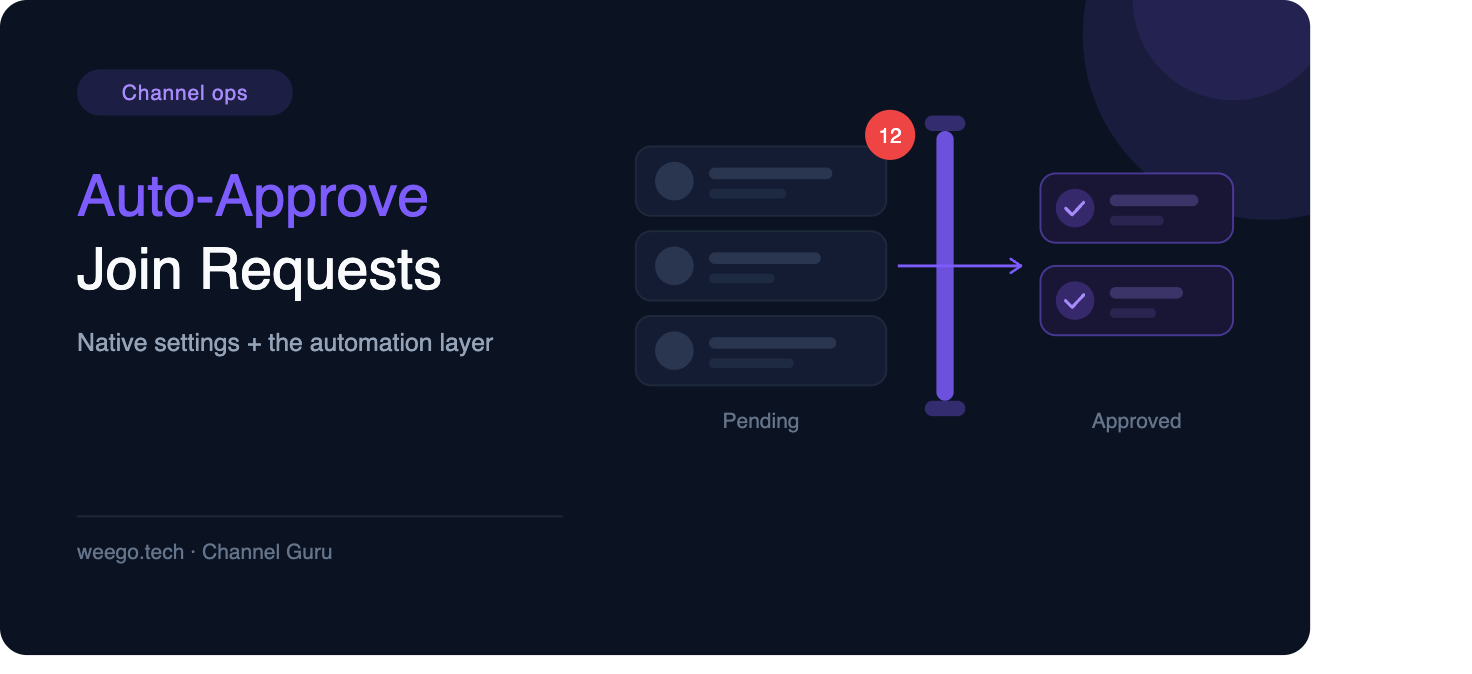
A join request is Telegram's built-in "waiting room." Instead of a user landing straight inside your channel, they tap a button and sit in a pending list until an admin approves or dismisses them.
It exists because open invite links leak. One screenshot of your link in a spam group and you inherit 400 dormant accounts overnight.
The catch: Telegram made the gate, but never built the door opener. Every single approval is a manual tap.
How do I turn on join requests in Telegram? (native settings)
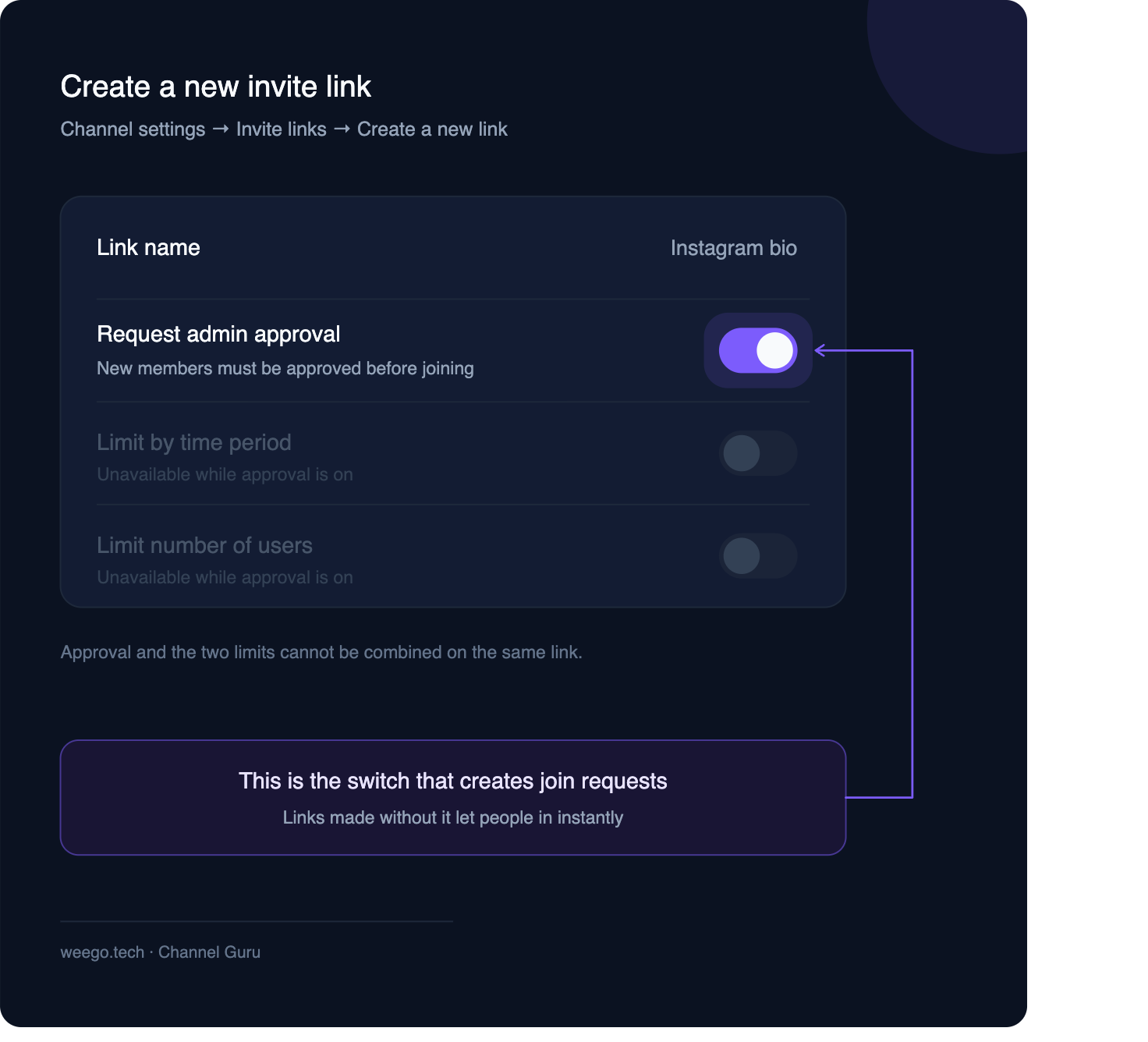
This is the part most guides get wrong, so read the distinction carefully: join requests are a property of the invite link, not of the chat. Your public t.me/yourchannel username link does not create requests.
For a private channel or group (invite-link method):
- Open your channel → tap the channel name at the top.
- Tap Edit (pencil icon) → Invite Links.
- Tap Create a New Link — not the primary link, a new one.
- Toggle Request Admin Approval on.
- Name the link something you'll recognise later ("Instagram bio", "Ads – EU").
- Save, and share that link everywhere.
Note that once approval is on, the limit-by-number and expiry options grey out — Telegram won't let you combine them on the same link.
For a public group: Telegram later added join requests for public groups directly, so members can be reviewed before they're allowed to write in the chat. Look under Edit → Group Type → Who Can Send Messages / Approve New Members depending on your app version.
Where the pending list lives: a bar appears at the top of the chat showing pending requests, or go to Chat Profile → Edit → Member Requests. You can see each applicant's profile photo and bio before deciding.
Can Telegram auto-approve join requests on its own?
No. This is the honest answer nobody puts above the fold.
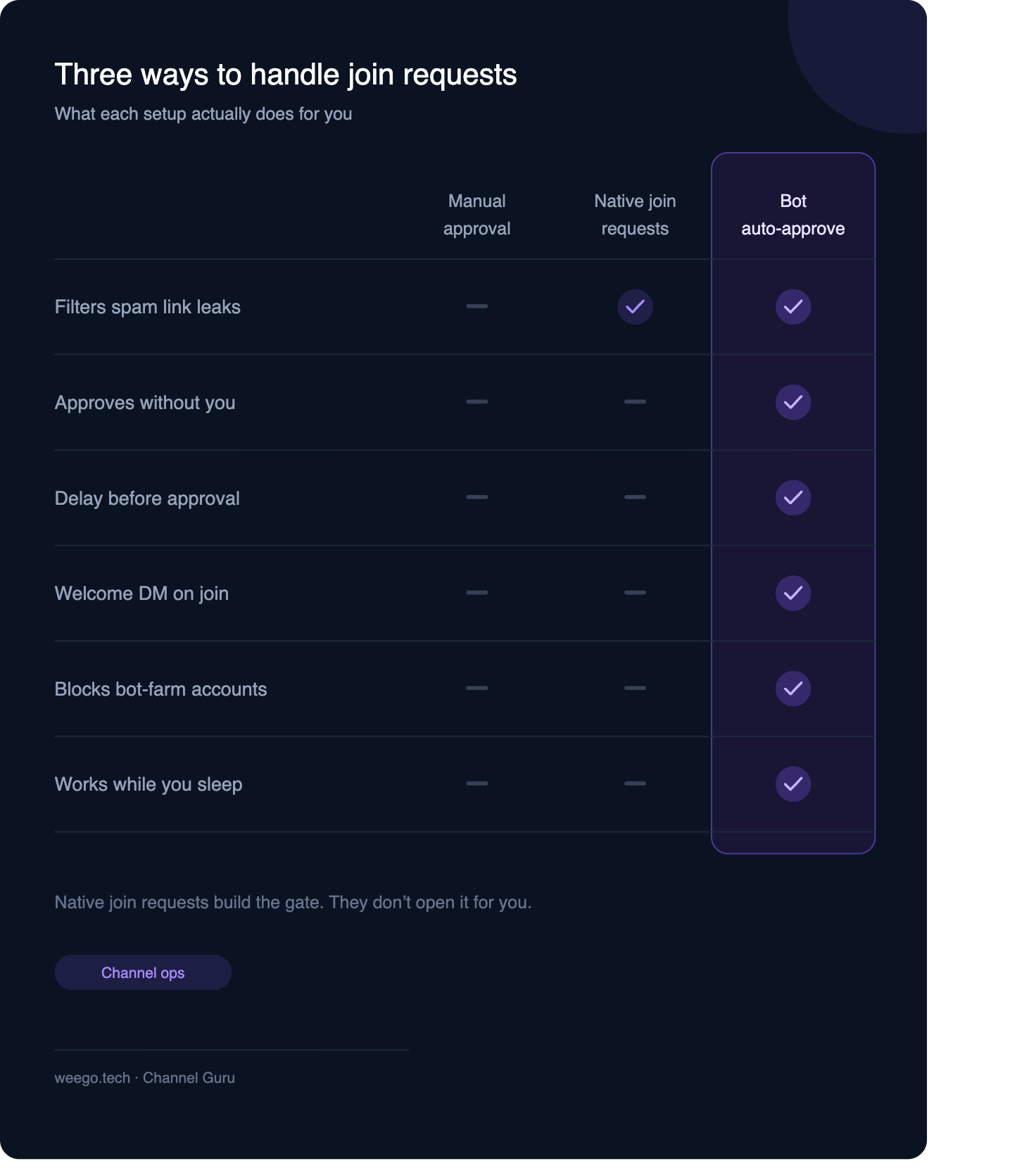
Telegram's native feature gives you a queue and two buttons. There is no built-in auto-approve, no "approve everyone after 10 minutes," no bulk-approve-all, no welcome message on approval, and no filtering rules.
That leaves admins with three bad options: approve by hand forever, turn approval off and eat the spam, or add a bot that does the approving for you.
How to auto approve Telegram join requests with a bot
Here's the mechanic under the hood, because knowing it saves you an hour of debugging: when someone taps a request link, Telegram fires a chat_join_request event. A bot that is an admin with the Add Members / Invite Users right can then call approve or decline programmatically.
Using Channel Guru, the setup is four steps:
1. Add the bot as an admin.
Channel → Edit → Administrators → Add Admin → @ChannelGuruBot. Grant Add Members / Invite Users — this specific permission is what unlocks approval. Without it, the bot sees nothing and silently does nothing.
2. Point it at the right link.
Requests only reach the bot from links created with Request Admin Approval on. If you enabled approval on a link you made last year, recreate it — some older links don't emit the event reliably.
3. Turn on auto-approve and pick a delay.
Instant approval is available, but a delay of 30 seconds to a few minutes is usually the better default (why, below).
4. Write the welcome DM.
This is where auto-approval stops being a chore-killer and starts being a growth feature.
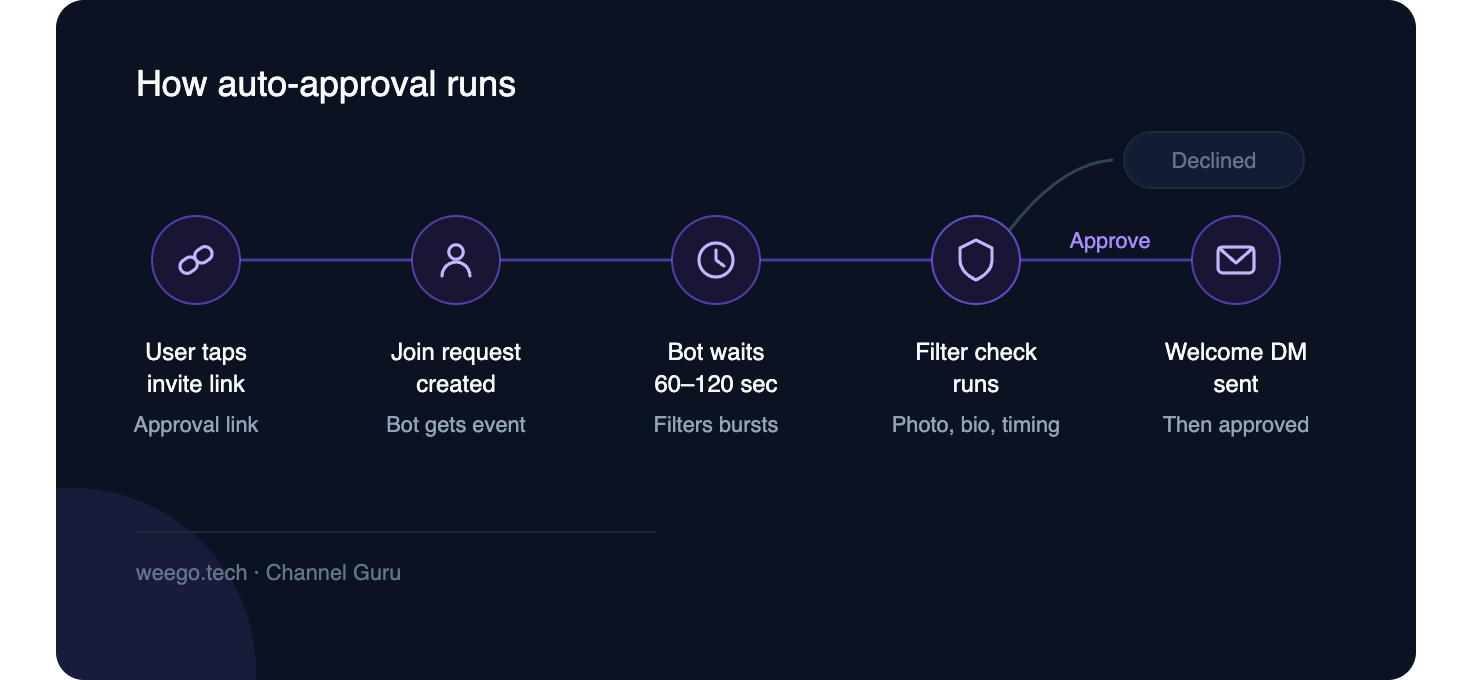
Why use a delay?
A short delay gives your automation time to evaluate the request before admitting the user. For example, you can use the delay to apply your own spam rules or decline requests that match known patterns.
Delays create a small psychological gate. A user who taps a link, gets "your request is being reviewed," and is admitted 90 seconds later treats the channel as something with a door. Instant entry reads as free.
A sensible default: 60–120 seconds for a growth channel, 5–15 minutes for a paid or curated community.
How do I send a welcome DM that actually gets delivered?
This is the single most valuable thing on this page, and almost no ranking article mentions it.
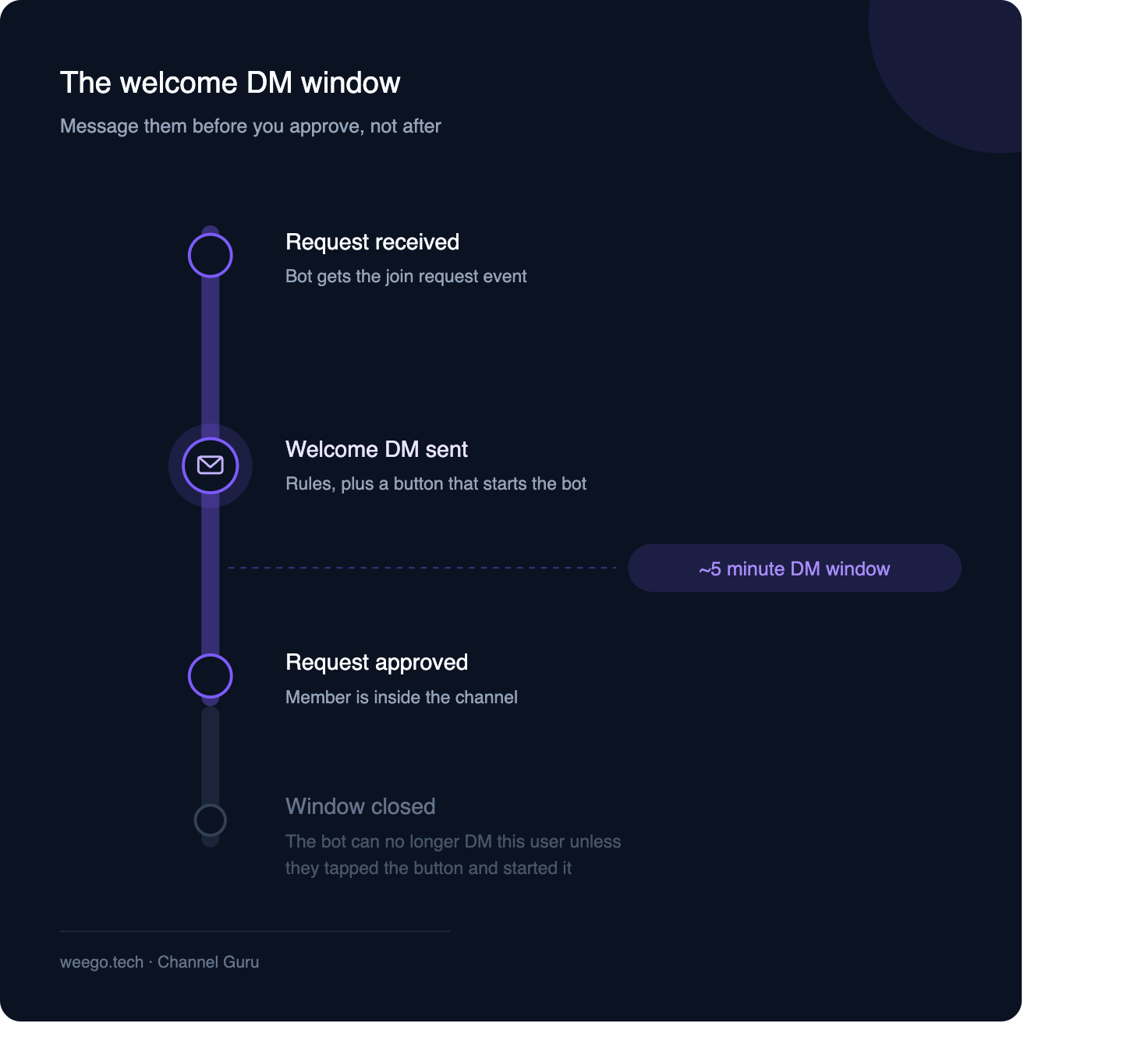
Normally a bot cannot DM a user who never started it. But a join request opens a narrow exception:According to Telegram's Bot API, user_chat_id can be used for up to five minutes to message the user while the join request is still pending, provided no other administrator has contacted them.
Translation: the window to message a new member is before you approve them, not after.
That changes the whole sequence. A well-built flow is:
- Request comes in.
- Bot immediately DMs a welcome/rules message with a "Start" or "Confirm" button.
- Delay elapses.
- Bot approves.
If the user taps the button, they've now started your bot — which means you can message them later too. That is how channels build a DM list instead of just a subscriber count.
Approve first and you lose the window entirely. Most people discover this after wiring everything backwards.
How do I keep bot-farm signups out?
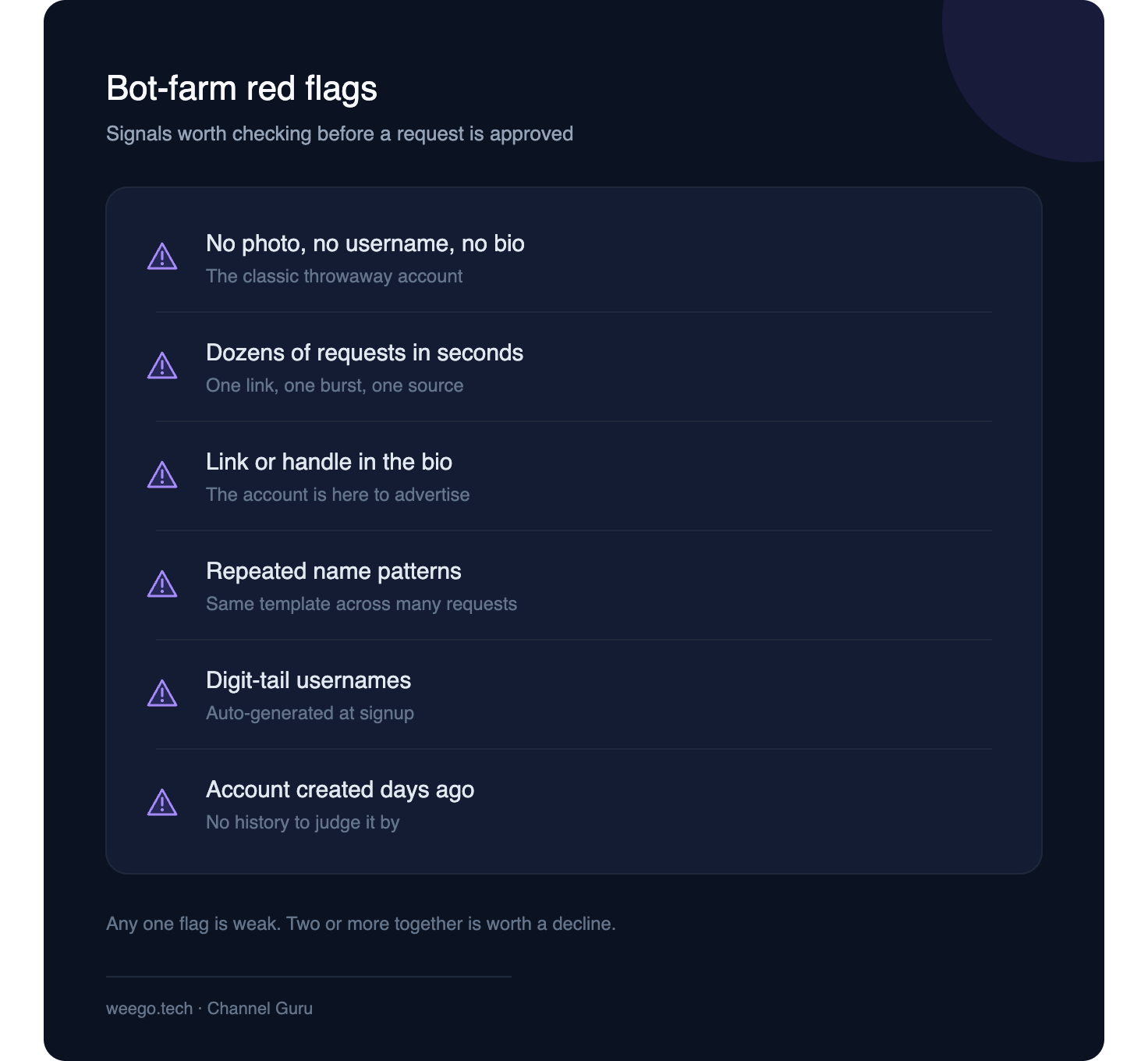
Auto-approve without filtering just automates the spam problem. Filter on signals that are cheap to check and expensive to fake:
- No profile photo + no username + no bio — the classic trifecta of a freshly minted throwaway.
- Burst timing — 30 requests in 40 seconds from a link you only shared in one place.
- Bio contains a link or a handle — most farmed accounts advertise something.
- Non-Latin or gibberish name patterns that repeat across requests within the same window.
- Username matching known spam patterns (long digit tails,
@user1234567).
Two structural habits help more than any filter:
Use one link per traffic source. A link for your Instagram bio, one for ads, one for partner shoutouts. When junk arrives, you know exactly which link leaked, and you can revoke that one without disrupting anyone else.
Revoke and rotate. A link that has been public for six months is a public asset. Rotate quarterly.
Troubleshooting: the bot isn't receiving any join requests
Four causes cover roughly every case:
The link wasn't created with approval on. Requests only exist for links where Request Admin Approval was toggled at creation. Recreate the link.
People are using your public username link. t.me/yourchannel bypasses the whole system on channels. If you need everyone gated, the private-link route is the only complete one.
The bot lacks Add Members / Invite Users. Admin status alone isn't enough — approval is tied to that specific right.
Another admin is approving manually. Once a human touches a request, the automation has nothing left to act on, and the DM window closes.
Already have a pile of pending requests? Channel Guru can clear them
Most join request bots only handle new requests, the ones that come in after you add the bot. Everything already sitting in your pending list stays stuck there, and you're back to tapping "Approve" one by one.
Channel Guru now handles the old ones too. If you have 812 requests waiting from last week, it can approve them for you, including requests that came in before you set up the bot.
How it works:
- Add Channel Guru as an admin with the Add Members / Invite Users right (same as above).
- Open the bot and choose the pending requests option for your channel.
- Pick what to do with them: approve all, or approve only real-looking accounts and decline the obvious spam.
- Channel Guru works through the whole backlog. Once it's done, new requests are handled automatically from then on.
One thing to know: people from the old backlog won't get a welcome DM. Telegram only lets a bot message someone within 5 minutes of their request, and for old requests that time has already passed. They'll still be let in, just without the welcome message. Everyone who requests after this gets the full flow (welcome DM, then approval).
Tip: run your spam filters on the backlog before approving. Old pending lists usually have the most bot-farm accounts, because they piled up while nobody was watching.
Also swap the old FAQ answer for this one so it doesn't contradict the new section:
Frequently asked questions
Does this work for channels and groups?
Yes, both. Groups also let you require approval on the public entry route; channels rely on approval-enabled invite links.
Can I approve the backlog I already have?
Yes. Channel Guru can approve requests that were pending before you added it, in bulk or filtered. Old requests won't get a welcome DM, because Telegram's 5-minute window has already closed. They're still approved normally.
Is auto-approving against Telegram's rules?
Approving your own chat's members via the official Bot API is a supported, documented capability. What gets accounts in trouble is mass-joining other people's chats and bulk-DMing strangers — a different activity entirely.
Can I approve the backlog I already have?
Yes. Once the bot has the right permission, existing pending requests can be processed in bulk. Note the DM window has already expired for old requests, so backlog approvals won't trigger welcome messages.
Will everyone get a welcome message?
Only those whose window is still open and who haven't been contacted by another admin. Expect high but not perfect delivery — that's a platform rule, not a bot limitation.
Can I auto-decline instead?
Yes, and for high-confidence spam patterns, declining is cleaner than approving-then-banning, because a decline leaves no trace in your member history.
The two-minute version
Turn on Request Admin Approval on a fresh invite link. Add a bot as admin with Add Members rights. Set a short delay, DM the welcome message before approval, and filter the obvious throwaway accounts.
That's the whole system. It takes about two minutes and gives you back the fifteen you currently spend tapping green buttons.
👉 Add ChannelGuru as an admin — 2-minute setup.
checkout our other /bots