How to Set Up Telegram Auto Reply in 2026 (Chat Automation Guide)
Telegram can now answer messages for you, and you don't need Premium to switch it on.
In May 2026, Telegram added Chat Automation, a setting that lets any user connect a bot to their profile and let it reply on their behalf. Most Telegram auto reply guides online were written before that, so they send you to paid tools or Premium-only settings.
This guide covers all three ways to set up Telegram auto reply today: free Chat Automation, Premium away and greeting messages, and a free support bot for teams. You also get a quick decision guide, 8 copy-paste reply templates and fixes for when replies don't send.
click here to get started with supportbuddy bot
How do you auto reply on Telegram?
To auto reply on Telegram in 2026, open Settings > Chat Automation and connect a bot that answers for you, choosing which chats it can reply to. Telegram Premium users can also set away and greeting messages with Telegram Business. For a team inbox, use a support bot with working hours and FAQ auto-replies.
The rest of this guide shows which option fits you and how to set up each one, step by step.
What changed in 2026: auto reply without Premium
Until May 2026, Telegram's built-in auto replies lived inside Telegram Business, which comes with Telegram Premium. Free users who wanted replies sent from their own account had to rely on third-party apps or scripts.
On May 7, 2026, Telegram announced Chat Automation: every Telegram user can now connect a bot to their profile and allow it to respond to messages on their behalf. The Bot API update that shipped the next day (Bot API 10.0) removed the Premium requirement for these bots.
What stayed the same:
- Away and greeting messages are still Telegram Business features, so they still need Premium.
- Auto replies work in private chats only. None of these options reply inside groups or channels.
That leaves three real options in 2026.
Which Telegram auto reply method should you use?
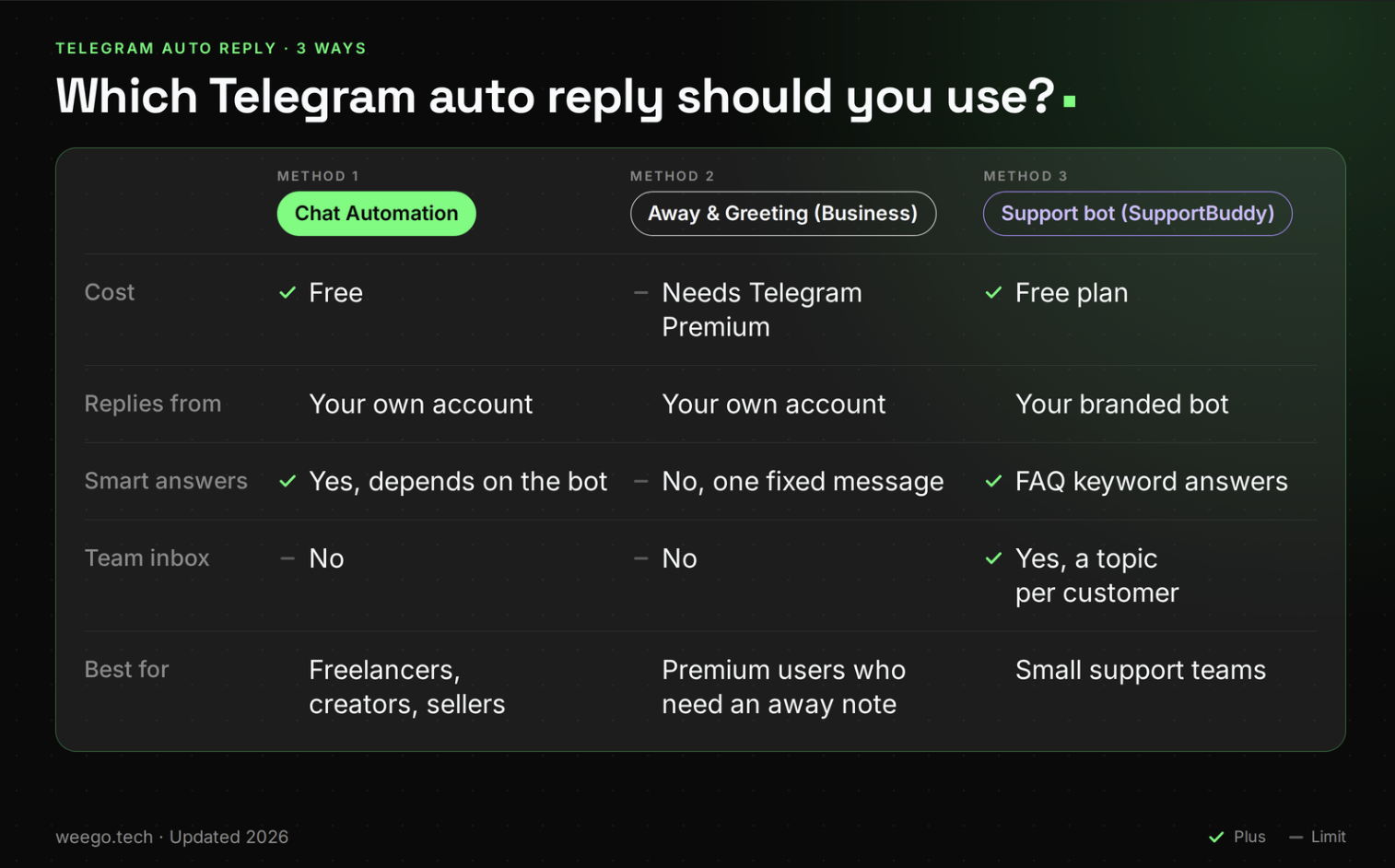
Method 1: Chat Automation
- Cost: free, no Premium
- Replies from: your own account
- Smart answers: yes, as smart as the bot you connect (an FAQ bot, an AI assistant, anything its developer built)
- Team inbox: no
- Best for: freelancers, creators, sellers and admins who get the same DMs every day
Method 2: Away and greeting messages (Telegram Business)
- Cost: needs Telegram Premium
- Replies from: your own account
- Smart answers: no, one fixed message
- Team inbox: no
- Best for: Premium users who just need "I'm away" or "welcome" covered
Method 3: Support bot (SupportBuddy)
- Cost: free plan
- Replies from: your own branded bot, not your personal account
- Smart answers: FAQ answers matched by keywords, plus a working-hours away message
- Team inbox: yes, every customer gets their own thread in your team's group
- Best for: small teams who share customer support
Quick pick: want replies from your own account, for free? Method 1. Already on Premium and need something in two minutes? Method 2. More than one person answering customers? Method 3.
Method 1: Telegram Chat Automation (free, no Premium)
Chat Automation connects one bot to your Telegram profile. When someone messages you, the bot reads the message and replies from your account, but only in the chats you allow.
Think of it as an assistant sitting at your phone. You decide which conversations they may answer, and you can take over any chat whenever you want.
What you need before you start
- The latest Telegram app. Update it from the App Store or Google Play.
- A bot that supports Chat Automation. Not every bot does. The bot's developer has to switch on Secretary Mode in @BotFather, so ordinary bots won't connect.
- A rule for who it answers. For example: new customers yes, family and coworkers no.
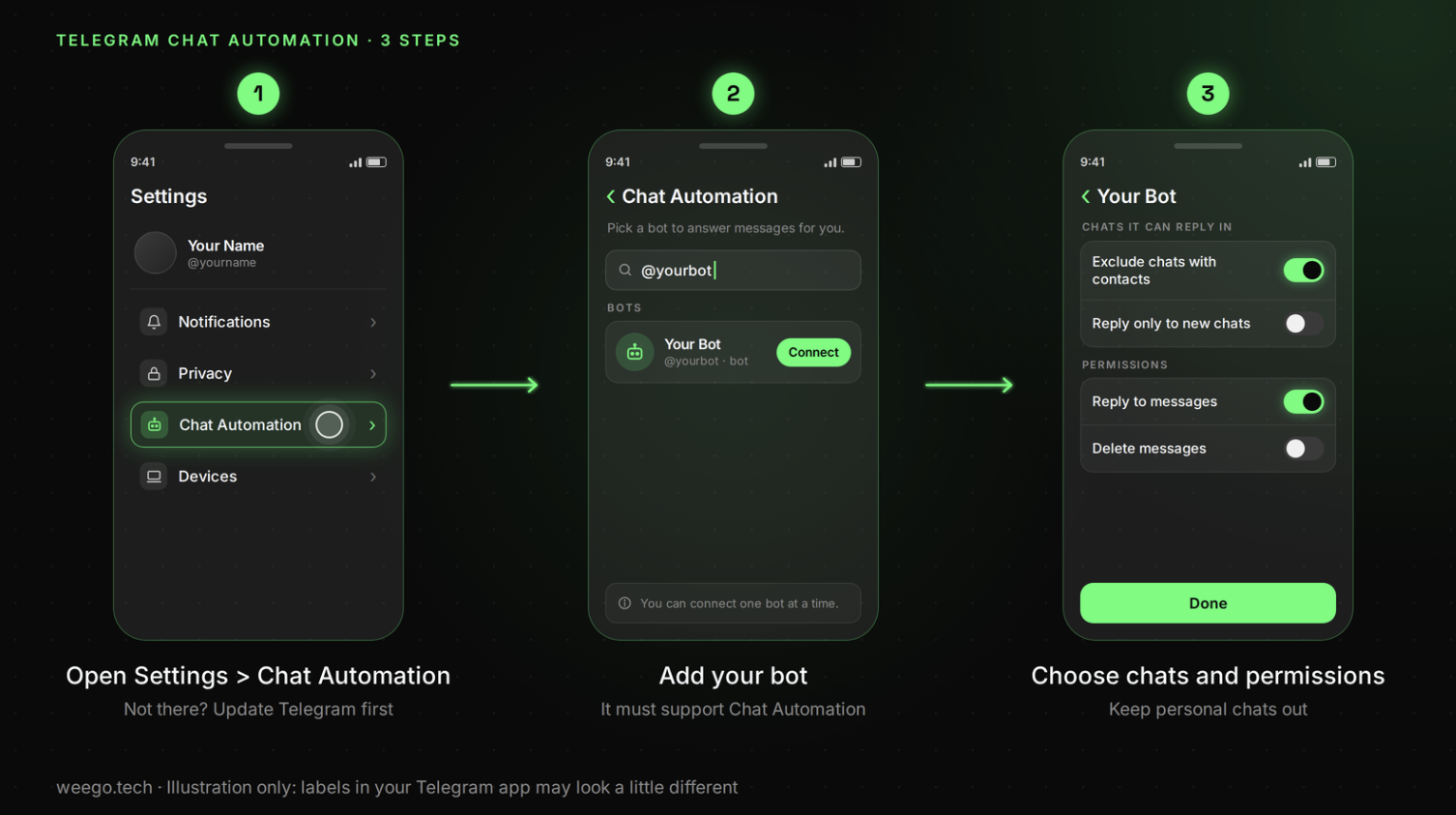
How to turn on Telegram Chat Automation
- Open Telegram and go to Settings > Chat Automation.
- Add the bot by its @username.
- Choose which chats it can access. You can, for example, exclude all chats with your contacts, or let it reply only to new chats. Add anyone it should never answer to the exclusions.
- Check the bot's permissions. Allow it to reply to messages, and only switch on extra rights (like deleting messages) if you know why the bot needs them.
- Confirm, then message yourself from a second account to see a live reply.
How to pause the bot in one chat
When the bot is handling a conversation, Telegram shows a small bot bar at the top of that chat. Use it to pause the bot there (say, when you want to reply yourself) or to stop it in that chat for good. Your other chats keep running.
4 rules to know before you rely on it
- Private chats only. The bot answers 1-to-1 chats. It won't reply in groups or channels.
- The 24-hour window. A connected bot can only send messages in private chats that got an incoming message in the last 24 hours. It's built for replying, not for messaging people first.
- One bot at a time. You can connect one bot to your account. To switch, disconnect the old one first.
- The bot's owner can see those chats. Whoever runs the bot can read the messages in chats you give it. Connect only a bot you trust (or your own) and keep personal chats excluded. Secret Chats are end-to-end encrypted, so the bot can't see those.
Building your own Telegram Chat Automation bot
Developers: switch on Secretary Mode for your bot in @BotFather. When a user connects it, your bot receives a business connection with the rights that user granted (such as can_reply), and it sends replies through that connection. Telegram's secretary bots guide has the details. Read section 5.4 of Telegram's bot developer terms before you launch.
Don't want to build it yourself? We cover that at the end of this guide.
Method 2: Telegram away message and greeting message (Premium)
If you pay for Telegram Premium, you already have Telegram Business. Its away and greeting messages are the simplest auto replies on Telegram: no bot, and no setup beyond typing your message.
The catch: they're fixed messages. They can't answer questions. They tell people you're away, or say hello.
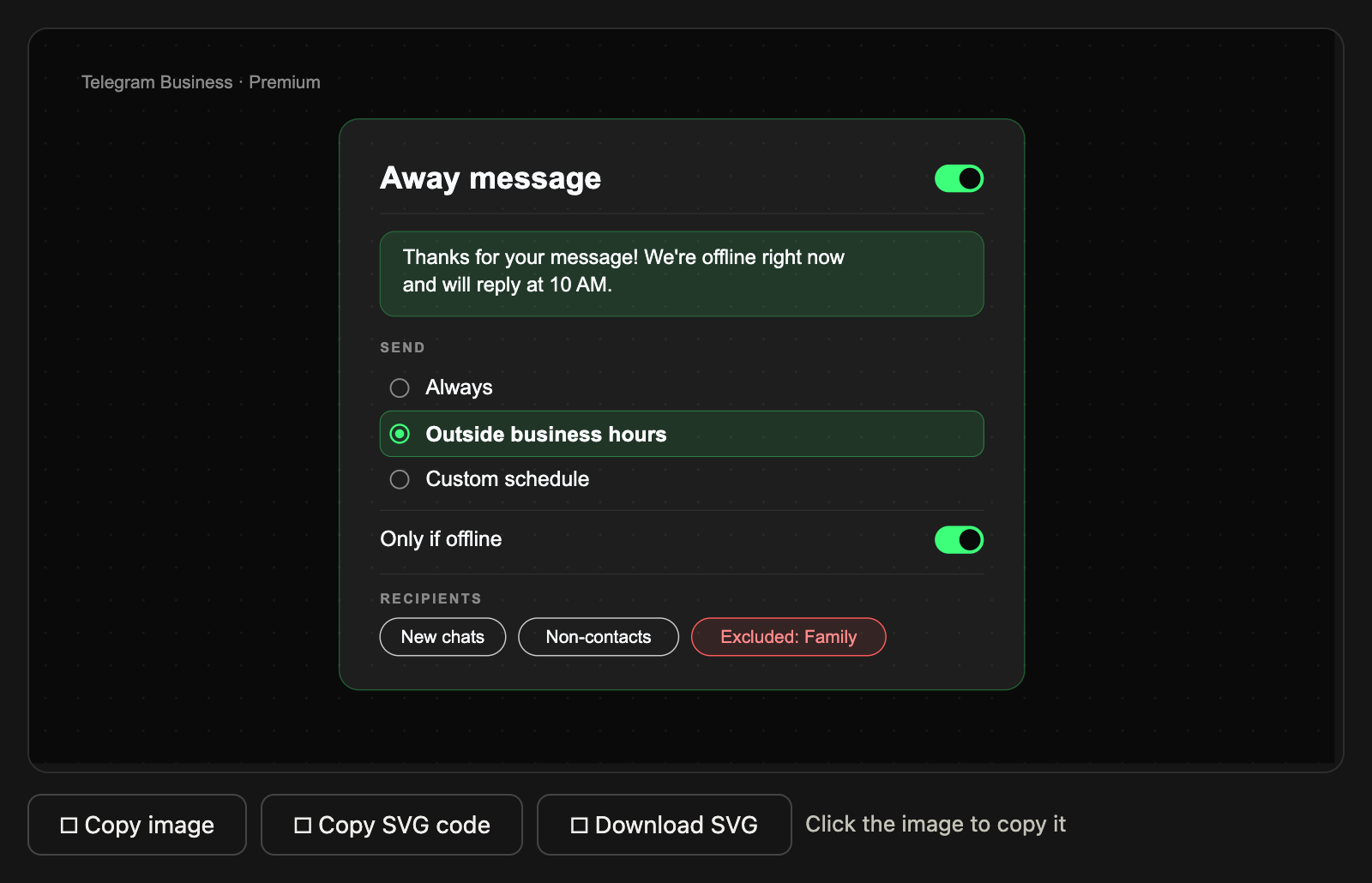
How to set a Telegram away message
- Go to Settings > Telegram Business > Away Messages.
- Switch it on and write your message. You can use formatting, links, media and files.
- Choose when it sends: always, outside your business hours, or on a custom schedule (perfect for holidays).
- Turn on the "only if offline" option if you don't want it sending while you're active.
- Choose who gets it: pick chat types (existing chats, new chats, contacts, non-contacts) and exclude anyone who shouldn't.
Tip: the "outside business hours" schedule only works after you add your business hours in Telegram Business.
How to set a greeting message
- Go to Settings > Telegram Business > Greeting Messages.
- Switch it on and write your greeting.
- Choose who gets it, using the same chat types as above.
- Set the period of no activity: 7, 14, 21 or 28 days. People who message you for the first time get the greeting, and so does anyone who writes again after that quiet period.
Greeting messages are for private chats. Want to greet new members of a group or channel instead? That's a separate native feature. See our Telegram welcome message guide.
Quick replies: not automatic, still a big time-saver
Telegram Business also includes quick replies: saved messages you send by typing / in a chat. They don't send on their own, but they turn a two-minute answer into two seconds.
Using a connected bot and an away message together? Test from a second account. If people get two automatic replies, switch one off.
Need auto replies for a team? Set up SupportBuddy free in 5 minutes →
Method 3: A Telegram auto reply bot for teams (SupportBuddy)
Methods 1 and 2 reply from one person's account. That breaks once two or three people share support. Who answered? Who's on shift? Who promised that refund?
A support bot fixes this. Customers message your bot instead of a personal account. Each customer gets their own thread (a topic) inside your team's private group, and anyone on the team can reply from there. The bot handles the automatic part: a welcome message, an away message outside working hours, and instant answers to common questions.
Here's the setup with SupportBuddy, the free helpdesk bot we built at Weego. It takes under five minutes.
Step 1: Create your support bot
Open @WeegoSupportBot and tap 🤖 Create Support Bot (or send /createbot). It asks for a bot token: get one from @BotFather by sending /newbot. Now you have your own branded bot, like @YourBrandSupportBot.
Step 2: Create a team group with Topics
Create a normal Telegram group for your team and switch on Topics. Add your new bot as an admin with Manage Topics, Pin Messages and Post Messages.
Step 3: Link the group
Open your new bot, send /start and pick the group you just made. As the owner, /start also opens your control panel.
Step 4: Set working hours and an away message
Go to Settings > 🕘 Working hours. Send your hours as a range (like 09:00-18:00), pick your days and set your timezone (like Asia/Kolkata). Then write the away message customers see outside those hours. Add the {back} placeholder and SupportBuddy fills in when you're next open.
Step 5: Add FAQ auto-replies
Tap 📋 Manage FAQs, then ➕ Add FAQ. Enter the words people use, separated by commas, for example: refund, money back, return policy, how do i get a refund. Then send the answer.
When a customer's message looks like one of those questions, the bot replies instantly. Matching ignores capital letters and small typos. The free plan includes 5 FAQs per bot, so start with the questions you answer most.
Step 6: Add a welcome message and share your link
Tap 💬 Set Welcome Message to greet every new customer (formatting and media work). Then put your bot link (t.me/YourBrandSupportBot) in your channel description, website and Telegram bio.
From then on, each customer gets their own topic with a pinned info card. Your team replies inside the topic, sends /close when it's solved, and the customer can rate the help from 1 to 5 stars.
[Suggested image: supportbuddy-auto-reply-flow.png — alt: "Flow showing a customer message answered instantly by a SupportBuddy FAQ reply and routed to a team topic in Telegram" — prompt: Image 5 in the SEO pack]
Comparing tools first? Read our roundup of the best Telegram support bots or our guide to running a helpdesk with Telegram Topics.
8 Telegram auto reply templates you can copy
A good auto reply does three things: confirms the message arrived, says when a human will answer, and tells people what to do meanwhile.
Say it's automatic, too. People are fine talking to a bot. They're not fine finding out later.
Copy one, edit the [brackets] and paste it into your bot, away message or FAQ.
1. After-hours away message
Use with: Method 2 or 3
Hi! Thanks for your message. We're offline right now. Our hours are [Mon–Fri, 10 AM–7 PM IST], and we'll reply as soon as we're back. Urgent? Email [[email protected]].
SupportBuddy version: "We're offline right now. Next available: {back}. Leave your question here and we'll reply in order."
2. Holiday or vacation
Use with: Method 2 (custom schedule)
Hi, I'm away until [date] with limited access to messages. I'll reply when I'm back. For anything urgent, message [name] at [@username].
3. First-time greeting
Use with: Method 2 or 3
Hey, welcome to [Brand]! Tell us what you need and we'll get back to you within [2 hours]. Prices and common questions: [link].
4. Busy right now (personal account)
Use with: Method 1
Hi there, this is an automatic reply. [Your name] is busy right now and will reply personally by [time]. Share the details here so nothing gets missed.
5. Ad and promo enquiries (channel admins)
Use with: Method 1
Thanks for your interest in advertising on [channel name]! Rates, audience stats and open dates: [link]. To book, send your post, preferred date and budget. We answer every booking within [24 hours].
6. New lead or quote request
Use with: Method 1 or 3
Thanks for reaching out! To send you the right quote, please reply with: 1) what you need, 2) your deadline, 3) your budget range. We'll get back to you within [X hours].
7. Support request received
Use with: Method 3
Got it, your request is with our team. We usually reply within [30 minutes] during working hours. Add screenshots or your order ID here so we can help faster.
8. FAQ answer: refund policy
Use with: Method 3 FAQ. Keywords: refund, money back, return policy, how do i get a refund
You can request a refund within [7 days] of purchase. Send your order ID here and we'll process it within [2 working days]. Full policy: [link].
Telegram auto reply not working? 8 fixes
1. Chat Automation isn't in your Settings. Update Telegram to the latest version. New features arrive with app updates, so check the phone app first.
2. The bot won't connect. The bot has to support Chat Automation (its developer must enable Secretary Mode in @BotFather). Also, only one bot can be connected at a time, so disconnect the old one first.
3. The bot is connected but doesn't reply. Check that it has permission to reply and that the chat isn't excluded. If you excluded contacts, it won't answer anyone saved in your contacts. Also make sure the bot itself is online: if its server is down, nothing sends.
4. It stopped replying in an older chat. That's the 24-hour window. The bot can only send in chats with an incoming message in the last 24 hours. It works again as soon as the person writes.
5. It ignores your groups. That's expected. Chat Automation and away messages work in private chats only. For groups, use a group management bot.
6. Your away message isn't sending. Check that Premium is active, the schedule is right ("outside business hours" needs your business hours set) and "only if offline" isn't holding it back while you're online. Then check the recipient list.
7. Someone didn't get your greeting. Greetings only go to first-time chats, or to people writing again after your no-activity period (7 to 28 days).
8. SupportBuddy isn't creating topics. Switch on Topics in your team group and make sure the bot is an admin with Manage Topics, Pin Messages and Post Messages.
Quick answers
Can you auto reply on Telegram without Premium?
Yes. Since May 2026, Chat Automation lets any Telegram user connect a bot that replies on their behalf, with no Premium needed. A support bot such as SupportBuddy also works on a free plan. Only Telegram Business away and greeting messages still need Premium.
What is Telegram Chat Automation?
Chat Automation is a Telegram setting (Settings > Chat Automation) that connects a bot to your profile so it can respond to messages on your behalf. You choose which private chats it can access and what it may do, and you can pause it in any chat.
Can a Telegram auto reply bot reply in groups?
No. Chat Automation, away messages and greeting messages all work in private 1-to-1 chats. For groups, use a group management bot. For a shared team inbox, use a support bot that customers message directly.
Can the bot read my messages?
Yes, in the chats you let it access. That's how it knows what to reply. Whoever runs the bot can see those messages, so connect only a bot you trust, limit it to the chats it needs and keep personal chats excluded.
Can I connect more than one bot to Chat Automation?
No. Telegram currently allows one connected bot per account. To switch bots, disconnect the current one first.
How do I set an away message on Telegram?
With Telegram Premium, go to Settings > Telegram Business > Away Messages, switch it on, write your message and choose when it sends: always, outside business hours or on a custom schedule. Without Premium, use Chat Automation or a support bot's working-hours message.
Do I still need apps like AutoResponder or userbot scripts?
Usually not. Android auto-reply apps reply through your notifications, so your phone has to stay on and the app sees every notification. Userbot scripts log in as you, which is risky if the code or session leaks. Chat Automation now does the job officially.
Set it up today
Telegram auto reply finally works the way people always expected: built in, free and from your own account.
Start with Chat Automation if you want replies from your profile. Use away and greeting messages if you're already on Premium. Move to a support bot once more than one person answers customers. Copy a template, test from a second account, and you're live today.
Want a bot that replies from your own account? Weego builds Chat Automation bots →