Telegram Communities: What They Are and How to Create One (2026)
Telegram Communities, added on 14 July 2026, link several channels, groups and bots into one hub. Members can see the community's visible chats and join them without an invite link. The whole community can sit as one item in the chat list. Admins choose which chats are visible or hidden and who can add new chats.
If you run a channel, a chat group and a bot, your members used to need a different link for each one. Now one Community ties them together.
This guide shows you how to set one up, the one default setting to change on day one, and 5 ready-made setups you can copy.
What are Telegram Communities?
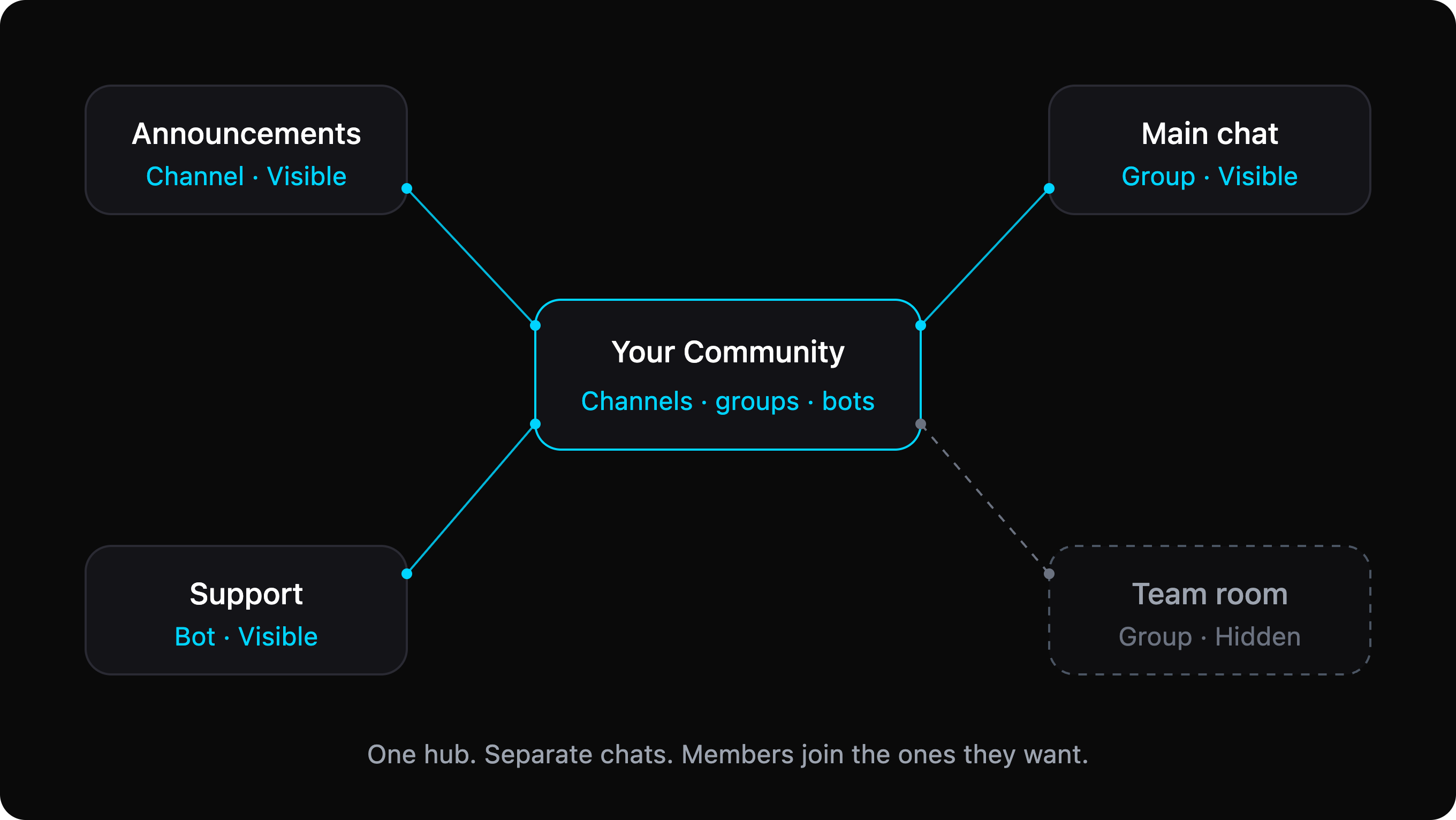
A Telegram Community is a hub that links separate chats around one topic. It can hold channels, groups and bots, all under one name.
The Telegram Communities update arrived on 14 July 2026, in the same release as the Rich Text Editor. You can read Telegram's official announcement for the details.
Here's what the Telegram community feature changes for your members:
- One front door. People join one of your chats the normal way. From there, they open the Community and see your other visible chats.
- No invite links needed. Members can join the other chats without an invite link. If a chat needs approval, they send a join request instead.
- A tidier chat list. The Community can show as one item that expands when you open it, or as separate chats. You can switch between the two.
What it doesn't do: it doesn't merge your chats. Each channel, group and bot keeps its own members, messages, admins and rules. Joining one chat doesn't put you in all the others.
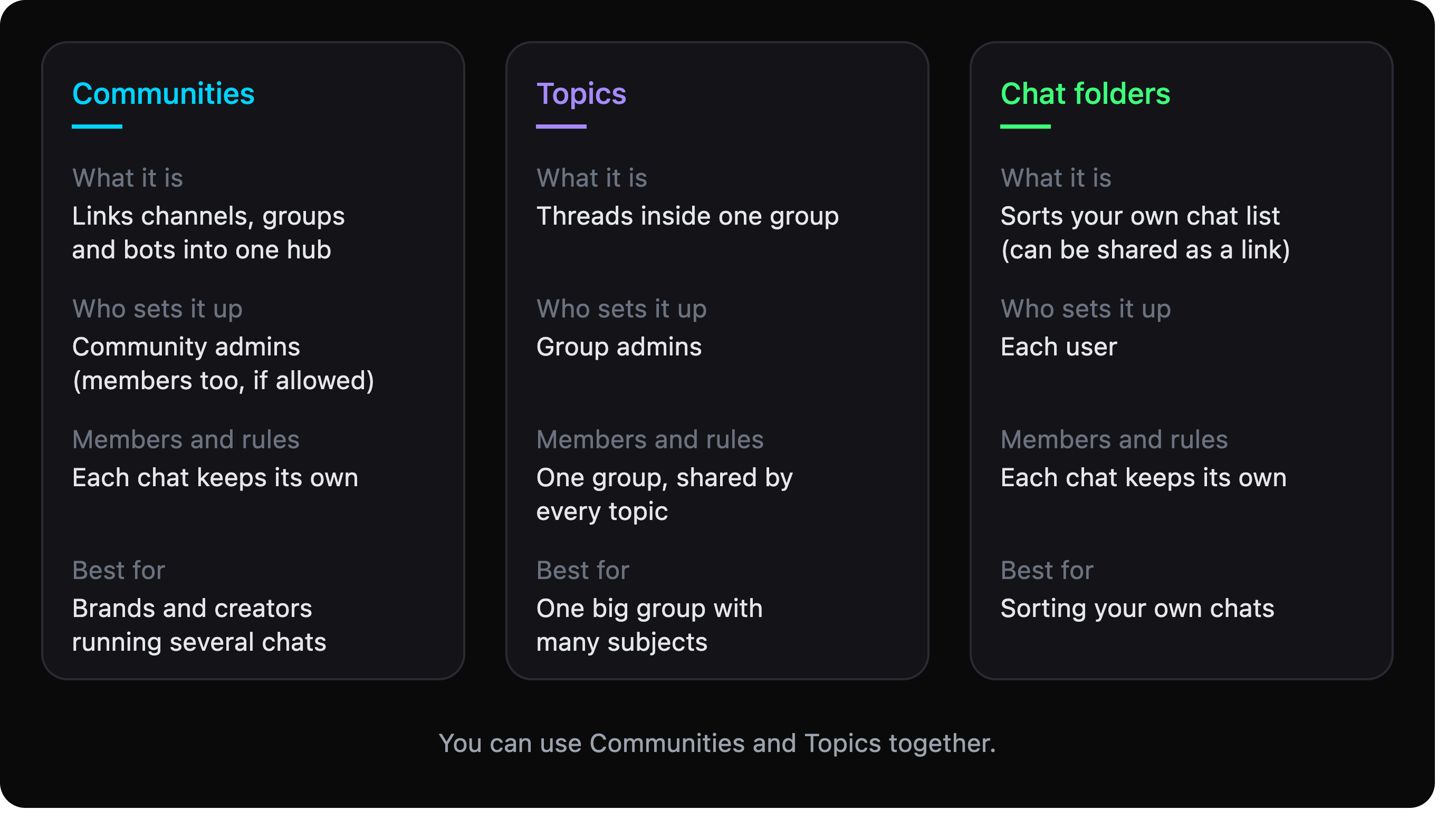
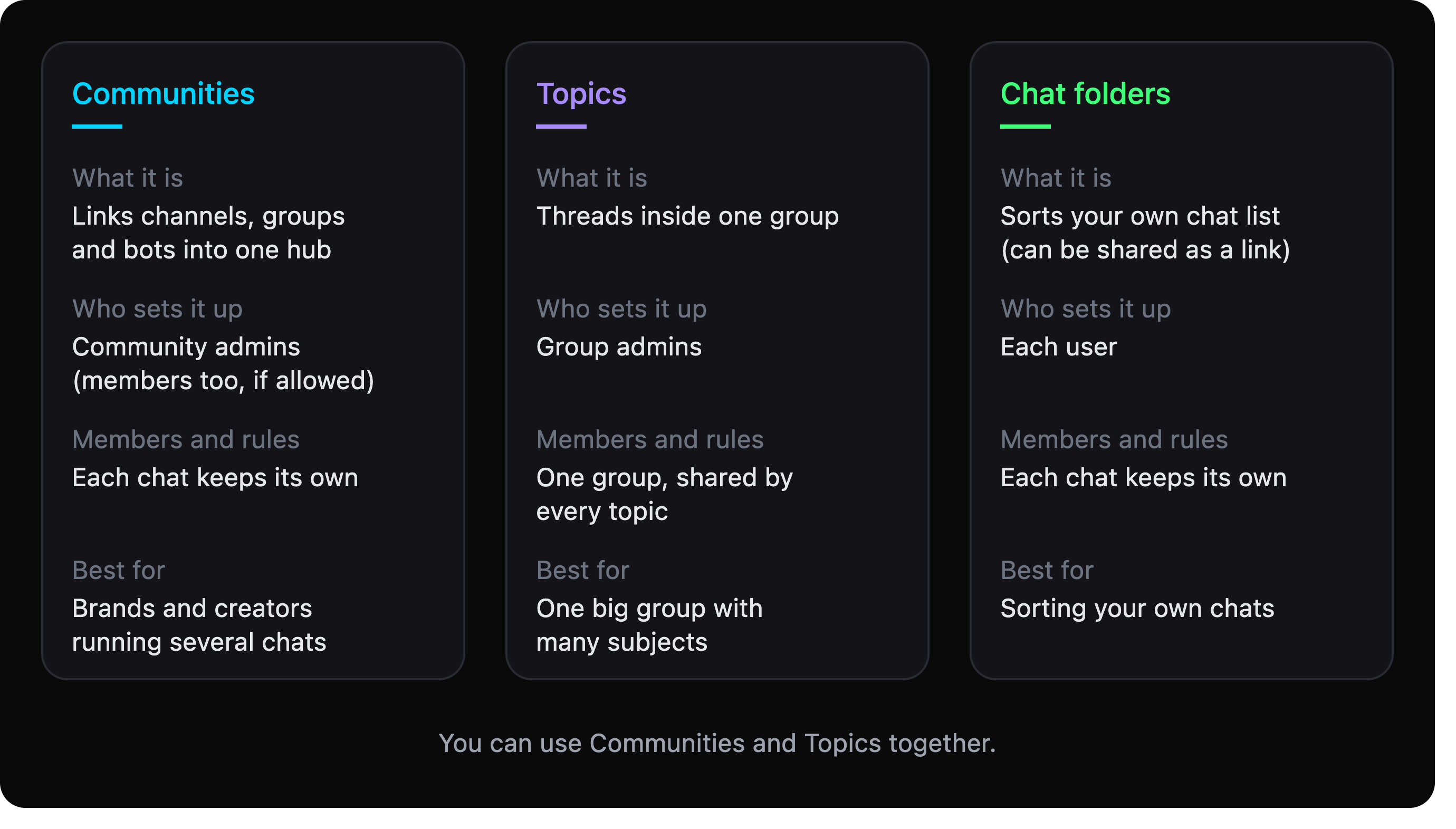
People often mix up Communities, Topics and chat folders. Here's the quick way to tell them apart: Forum Topics split one group into threads, chat folders sort your own chat list, and a Community links separate chats.
How to create a Telegram Community (step by step)
You need at least one channel, group or bot that you manage. Start with your "front door": the chat most new people join first. For most admins, that's the main channel.
- Update Telegram. Get the latest version on your phone or computer.
- Open your front-door chat's profile. Tap the chat name at the top.
- Find the Community option. Look for "Add Channel to a Community" (or "Add Group" or "Add Bot"). On Android and iPhone, it's in the profile or its edit menu. On Telegram Desktop, look inside Manage.
- Tap "Create Community". Give it a name people will recognise, like your brand name. Telegram links the chat and posts a short note in it.
- Open the Community. Tap its name in that note, or in the chat's profile. This page lists all its chats.
- Add your other chats. Tap "Add a Chat to Community" and pick each channel, group or bot. Choose Visible or Hidden for each one.
- Limit who can add chats. Open Manage (called "Edit Community" in some apps) and change "Who can add chats". More on this below.
The menu names can differ a little between apps, but the steps are the same.
[Screenshots A to C: take these in the app]
- A (Android). Alt text: "Add Channel to a Community option in Telegram channel settings on Android"
- B (iPhone). Alt text: "Create Community screen in Telegram on iPhone"
- C (Desktop). Alt text: "Community option inside the Manage menu on Telegram Desktop"
Tip: Right now, a Community doesn't have its own invite link. Share your front-door chat's link as usual. Once people join it, they can open the Community and find everything else.
Adding channels, groups and bots
You can add channels and groups you manage, and bots you own (the ones you made with @BotFather).
There are two ways to add a chat:
- From the Community page: tap "Add a Chat to Community".
- From the chat itself: open its profile and pick "Add Channel to a Community" (or Group, or Bot).
Who has to approve it? If you're a Community admin, the chat is added right away. If only admins can add chats and a regular member tries, their chat shows up as a suggestion for admins to approve.
To take a chat out, use "Remove Channel from Community" (or Group, or Bot) in that chat's settings. This only breaks the link. The chat itself stays exactly as it was.
Linking a channel and a group: comments or Community?
Lots of admins search for how to link a Telegram channel and group. Now there are two different answers:
- For comments under your posts: open your channel, tap Edit, go to Discussion and pick a group. Every post gets a Comments button.
- To help people find all your chats: add the channel and the group to a Community.
You can do both. Your comments group can also be one of the Community's chats.
Visible vs hidden Telegram community chats
Every chat in a Community is either Visible or Hidden:
- Visible: all Community members can see it and join it. If it needs approval, they send a join request.
- Hidden: regular members don't see it in the Community. Only Community admins and people already in that chat can.
Use Visible for your front-door chats: announcements, the main chat and your support bot. Use Hidden for team rooms, moderator groups, VIP groups and one group per student batch.
One warning: Hidden is not a lock. It only keeps a chat off the Community list. If a chat must stay private or paid, keep its own access rules too, like join requests or a payment bot.
Change this setting first: who can add chats
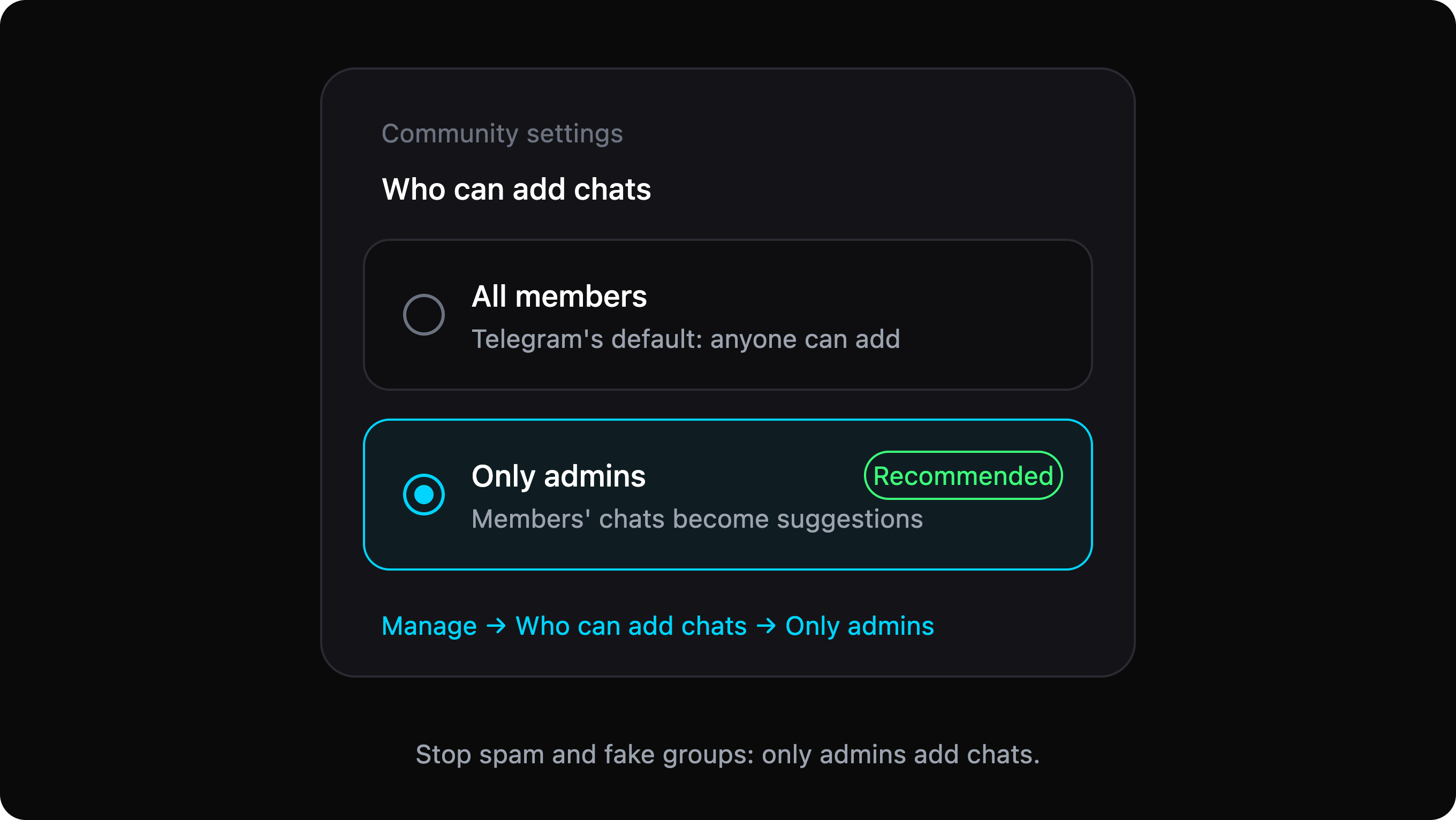
Telegram made Communities collaborative by default. That means any member can add chats they manage to your Community.
It sounds friendly. In practice, it invites trouble:
- Spammers can add their own groups next to yours.
- Scammers can add a fake "official" or "VIP" group.
- Off-topic chats make your Community look messy and harder to trust.
Fix it in 10 seconds: open the Community, tap Manage, then Who can add chats, and pick Only admins. Members can still suggest chats, and you approve the good ones.
When should you keep "All members"? Only for open, member-run communities, like a city or hobby community where people run their own small groups. Even then, check what's been added once a week.
Also, give the Community admin role only to people you trust. They manage the whole Community, not just one chat.
5 Telegram Community setups that work
Copy one of these and adjust it. In every setup, set "Who can add chats" to Only admins, unless the setup says otherwise.
1. Creator
- Main channel: Visible (front door)
- Fan chat group: Visible
- Your bot for links, FAQs or freebies: Visible
- Close-friends or supporters group: Hidden
2. Crypto signals
- Free signals channel: Visible (front door)
- Traders' chat: Visible
- Support bot: Visible
- VIP signals channel: Hidden, with its own paid access
Free members find the chat and support in one place, and the VIP channel never shows up for people who haven't paid. Keep "Who can add chats" on Only admins: fake "VIP" groups show up in crypto first.
3. SaaS or app
- Product updates channel: Visible (front door)
- User community group (turn on Topics when it gets busy): Visible
- Support bot: Visible
- Feedback group: Visible
- Beta testers group: Hidden
4. Online course
- Course announcements channel: Visible (front door)
- Q&A group with one Topic per module: Visible
- Files bot that hands out lesson files: Visible
- One group per batch: Hidden
A branded file bot like ShareBuddy can share lesson files and ask students to join your channel first.
5. Local business or city community
- Offers and news channel: Visible (front door)
- Customer chat: Visible
- Orders and questions bot: Visible
- Staff group: Hidden
This is the one setup where "All members" can work. In a city community, residents can add their own street or building groups. Just review new additions every week.
Managing joins and welcomes across your Community
A Community helps people find your chats. It doesn't approve them or greet them. Each chat keeps its own join rules, so that's where your setup work goes.
Private channels with join requests. If a channel in your Community needs approval, each new person sends a join request. Approving them by hand is slow, and people lose interest while they wait. A bot can auto-approve join requests the moment they arrive and send each person a personal welcome DM with text, images and buttons.
Groups. Use Telegram's built-in welcome message (added in August 2026) to greet new members. Since July 2026, bots in groups can also send messages that only one person sees, like a greeting, so the chat stays clean.
Support. Add a support bot to the Community as a Visible chat. With SupportBuddy, the bot runs under your own name. Members message it like any chat, and each conversation becomes its own topic in your team's private group. Keep that team group Hidden, or leave it out of the Community.
For developers: Bot API 10.2 (July 2026) lets bots see which Community a chat belongs to and notice when chats are added or removed. See the Bot API changelog.
Approve joins and send welcome DMs in every channel of your Community with Channel Guru →
Add @ChannelGuruBot as an admin, forward one post and set your greeting. Setup takes about 3 minutes.
Telegram Communities FAQ
Are Telegram Communities free?
Yes. Telegram's July 2026 announcement lists only the new Rich Text Editor as a Premium feature. Communities aren't marked as Premium.
Can members add their own chats?
By default, yes. Any member can add a chat they manage. Admins can switch "Who can add chats" to Only admins, and member additions then arrive as suggestions to approve.
What's the difference between a Community and a group with Topics?
Topics are threads inside one group, so everyone shares the same members and settings. A Community links several separate chats, and each keeps its own members, admins and rules. One big group? Use Topics. Several chats? Use a Community. You can use both.
How many chats can a Community have?
Telegram hasn't published a limit in its announcement. In practice, 3 to 8 chats is easy for members to understand. If you need more, split the Community by topic or language.
Is there an invite link for a whole Community?
Not a separate one. Share the link to your front-door chat. Once people join it, they can open the Community and find the rest.
Does joining a Community add me to every chat?
No. You join each chat yourself. Visible chats can be joined without an invite link, and some may ask you to send a join request first.
Your next step
Telegram Communities are the easiest way to stop sending people five different links. Start small: one front-door channel, one chat and one bot. Set "Who can add chats" to Only admins on day one, and add new chats only when people ask for them.
Then make every newcomer feel welcome with fast approvals and a friendly first message. Once your Community is in place, use it to grow your Telegram channel with cross-promos and welcome DMs.