
Stop reposters: auto-watermark every Telegram photo. Telegram has no built-in watermark setting. To watermark channel photos automatically, use a Telegram watermark bot that edits images on the way out: save your logo or text as a preset, set the opacity and size, and the bot stamps every photo before it reaches your channel.
If you run a photography, meme, deals or news channel, you already know the pain: you post an original photo, and within an hour it shows up in three other channels with no credit. This guide shows you how to put your brand on every image automatically, which settings look professional, and what a watermark can and can't protect.
Does Telegram have a watermark setting?
No. As of 2026, Telegram does not offer a native option to add a logo or text watermark to photos you post in a channel or group. Whatever you upload is published exactly as it is, so anyone can save it, forward it, or re-upload it as their own.
That leaves you with two choices: watermark every image by hand before posting, or let a bot do it for you.
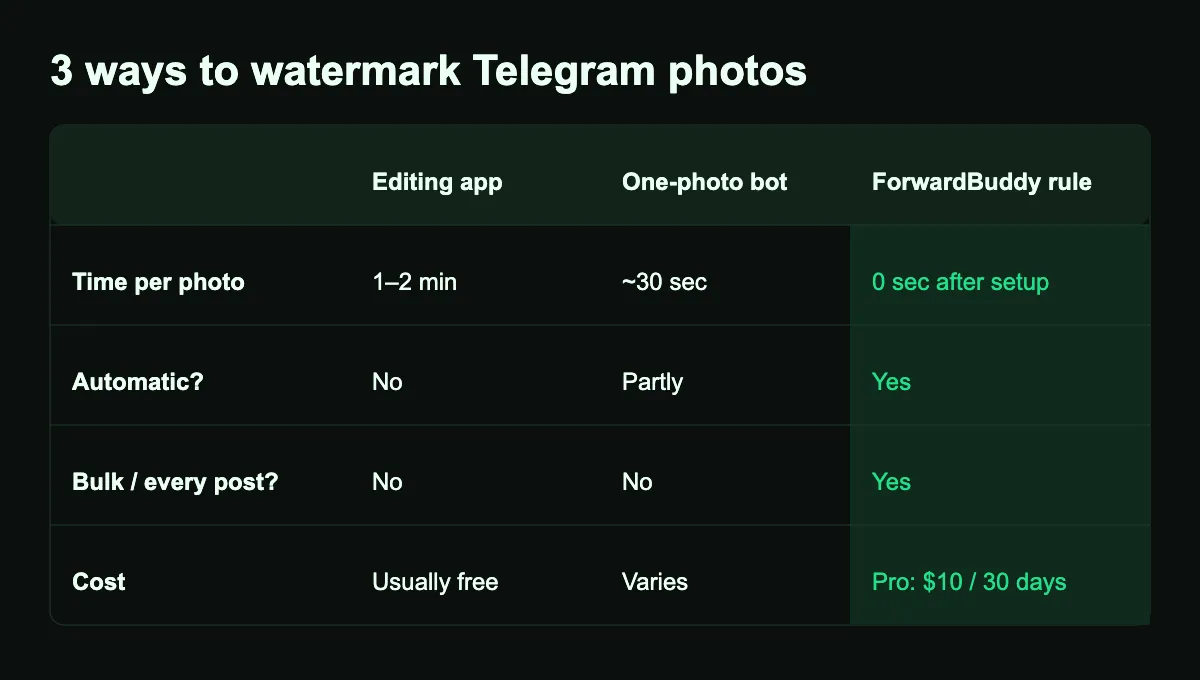
3 ways to watermark Telegram photos
1. Photo editing apps (manual)
Apps like Canva, Snapseed or any phone editor can add a logo. It works, but you have to open, edit and export every single image. Fine for 2 posts a week, painful for 20 a day.
2. Single-purpose watermark bots
Some Telegram bots let you send one photo, they return it with a watermark, and you then post it yourself. Faster than an editor, but still one photo at a time and still a manual step before every post.
3. An automatic rule (ForwardBuddy)
The best option for active channels: you post into a private drafts channel, and ForwardBuddy copies each post to your public channel with your watermark already applied. No extra step, works in bulk, and every photo is branded the same way.
Quick comparison:
- Editing app: 1-2 minutes per photo, manual, no bulk, usually free.
- Watermark bot (one at a time): about 30 seconds per photo, semi-manual, no bulk.
- ForwardBuddy rule: 0 seconds per photo after setup, fully automatic, works for every post. Watermarks need ForwardBuddy Pro.
Watermark every photo automatically with ForwardBuddy Pro → Set up your first watermark rule
Step by step: auto-watermark every post with ForwardBuddy
- Create a private "drafts" channel. This is where you (or your team) will post. Nobody else needs to see it.
- Add ForwardBuddy. Start the bot and add it as an admin to your drafts channel and your public channel, so it can read from one and post to the other.
- Create a watermark preset. Upload your logo (a PNG with a transparent background works best) or type your text, such as @YourChannel. Choose position, size and opacity.
- Create a forwarding rule: drafts channel → public channel, with your watermark preset switched on.
- Test with one photo. Post a single image in drafts, check how it looks in your public channel, and adjust size or opacity if needed.
From now on, every photo you post in drafts appears in your public channel already branded. Full details are in the watermark settings in the docs.
Best watermark settings
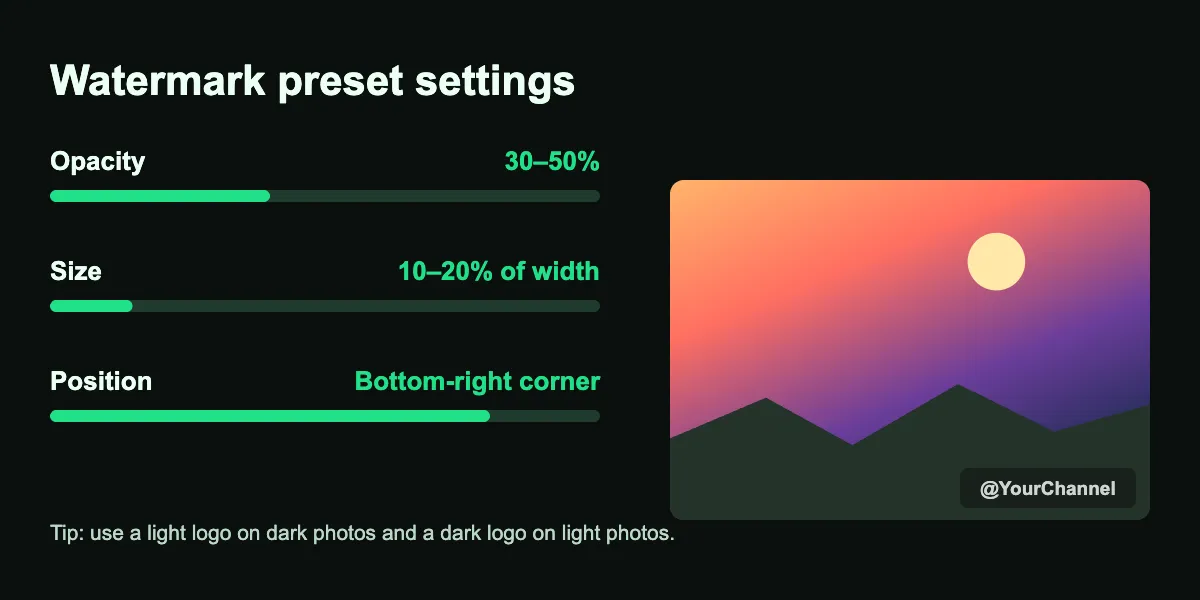
A good watermark protects your photo without ruining it. These settings work for most channels:
- Opacity: 30-50%. Visible enough to credit you, subtle enough not to distract.
- Size: 10-20% of the image width. Smaller is easy to crop out; bigger looks like spam.
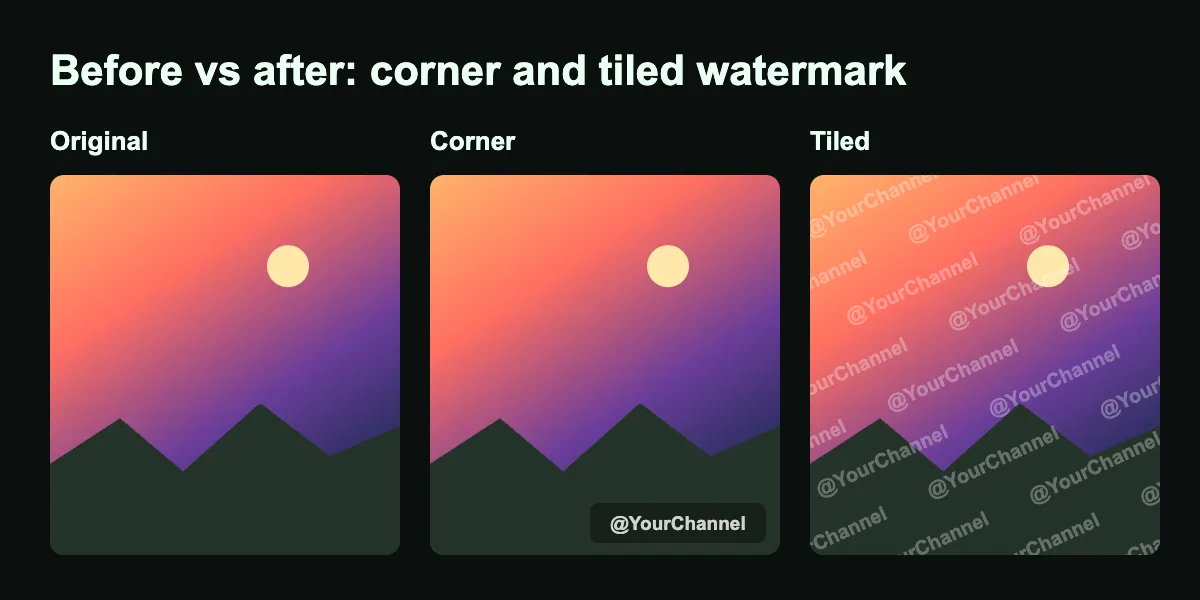
- Position: corner or tiled. A corner logo looks clean and suits most content. A tiled (repeated) watermark is much harder to remove and suits high-value photos like product shots or exclusive content.
- Two logo versions. Keep a light logo for dark photos and a dark logo for light photos so it is always readable.
Add a header or footer too
A watermark brands the image; a footer brands the post. With ForwardBuddy Pro you can add your channel name and link to the end of every post, for example: Join us: t.me/YourChannel. Even if someone forwards your post, the link travels with it and brings new subscribers back to you.
What a watermark can't stop
Be realistic: a determined reposter can crop a corner watermark or use an AI tool to remove it. To make copying harder:
- Use a tiled or centre watermark for your most valuable images.
- Turn on Telegram's Restrict Saving Content option in your channel settings. It blocks forwarding, saving and screenshots in most apps (Telegram announcement).
- Post consistently so your audience knows where the original comes from.
Note: restricting content also stops your fans from forwarding posts, which slows growth. Many channels keep it off and rely on watermarks plus a footer link instead.
Watermarking posts you forward
If you forward content from other channels, only add your watermark when you have permission, and always credit the original source. If you republish posts, you may also want to repost without 'Forwarded from' or clone a channel you own. Comparing tools? See our list of the best auto forward bots.
Frequently asked questions
Can I watermark videos on Telegram?
ForwardBuddy's watermark works on photos. Videos are not supported, so for video you will need to add your logo in an editor before posting.
Will it watermark my old posts?
No. The watermark is applied to posts that pass through your forwarding rule, so it covers everything you post from the moment you set it up.
Does a watermark hurt reach on Telegram?
No. Telegram does not reduce the reach of watermarked images. Keep it small and subtle so it doesn't put off readers.
Is ForwardBuddy free?
ForwardBuddy has a free plan for forwarding. Watermarks are a Pro feature at $10 per 30 days.
Start branding every photo today
Telegram won't watermark your photos for you, but a Telegram watermark bot can do it automatically on every post. Set up a drafts channel, create one preset, and never upload an unbranded photo again.